
Getting the most from Netflix and Disney+ on your TV: picture, subscription, connection
Paying for 4K but the picture still looks blurry? The problem often lies with the subscription, the connection or an app setting. Here are the checks to make so you really get the most from Netflix, Disney+ and other streaming services.
- 4K and HDR require the most expensive plan on Netflix
- Allow at least 15 to 25 Mb/s stable for 4K
- A network cable is better than Wi-Fi
- Use thebuilt-in app of the TV, not an old set-top box
1. Check your subscription
Not every plan gives access to the best picture. On Netflix, only the Premium plan offers 4K, HDR and Dolby Vision. Cheaper plans stop at HD. On Disney+, 4K and HDR are included in the Standard plan without ads and in Premium depending on the country, but not always in the plan with adverts. Check the plan in your account: it's the most common cause of a disappointing picture.
2. Check your connection
The platform adjusts quality to your bitrate. Below about 15 Mb/s stable, 4K quality degrades without warning. In the Netflix app, the help screen offers a connection test; you can also type "fast.com" in the TV's browser.
- Connect the TV with an network cable if the box is nearby: it's the most stable option.
- Otherwise, move the box closer or add a Wi-Fi extender or a powerline kit.
- Avoid large downloads on other devices during the film.
3. Use the right source
The built-in app on a recent TV almost always handles 4K, HDR and Dolby Vision. An old box or older streaming stick may limit the picture to HD. If your TV is less than five years old, prefer its app.
4. Adjust the picture for films
Choose the mode Filmmaker, Cinema or Dolby Vision Dark, and turn off motion smoothing. When a film is in HDR, the TV switches mode automatically: set this HDR mode once as well.
On Netflix, look for the "Ultra HD 4K" or "Dolby Vision" badge next to the title. On the TV, the Info button on the remote often shows the resolution and HDR format received.
TVs with 4K Dolby Vision apps
 TV OLED LG OLED42C64LA€1,120.00
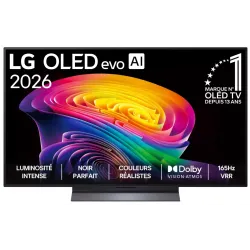 OLED TV LG OLED55C64LA€1,438.00
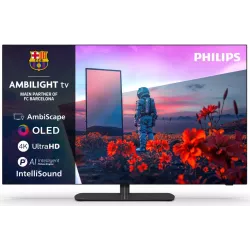 OLED TV PHILIPS 42OLED811/12€1,262.00
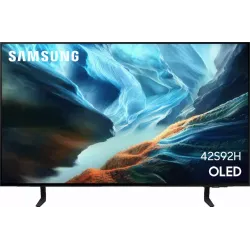 OLED TV SAMSUNG TQ42S92H€1,048.00
 QLED TV TCL 65C89L€1,799.00
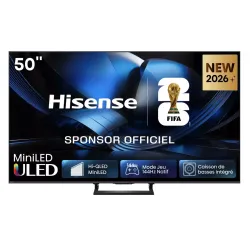 Mini LED TV HISENSE 50U7SE€595.00
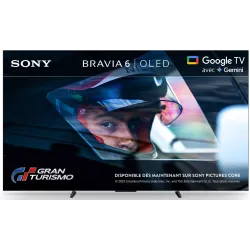 OLED TV SONY K55A65PB€1,193.00
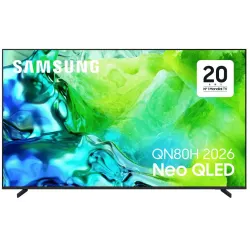 TV QLED SAMSUNG TQ65QN80H€961.00
Frequently asked questions
Why is the picture blurry for the first few seconds?
The platform starts at low quality, then increases it once it has measured your bitrate. If it stays blurry, the problem is your connection or subscription plan.
Is Wi-Fi enough for 4K?
Often yes, if the TV is close to the box. But a wall or a floor can be enough to reduce the bitrate. A network cable is still the safest option.
Do I need a box in addition to my smart TV?
No if your TV is recent and has the apps. A box can be useful if your TV's apps are no longer updated.
Come and compare the screens in person
At our Temploux shop, we switch on TVs side by side with your content. Or ask our expert salesperson online, right now.
Read next
 CaseStreaming platforms in Belgium in 2026: prices, ads, 4K and Dolby VisionNetflix, Disney+, Prime Video, Streamz, Apple TV, HBO Max, not forgetting the free Belgian platforms: the choice has never been so wide, nor so complicated. Here are the Belgian prices checked in October 2026, what each plan really delivers in picture and sound, and our tips for not overpaying.6 min read
 The expert's adviceWi-Fi or network cable: why streaming loses qualityStreaming platforms adjust picture quality to your connection, without warning you. Weak Wi-Fi can turn a 4K film into HD, or even lower. Here's how to tell whether your connection is holding back your TV, and how to fix it.2 min read
 The expert's adviceFilmmaker mode and cinema modes: watching a film as the director intendedYour TV hides a mode designed with Hollywood directors. It switches off all the processing that distorts the picture and respects the colours, frame rate and lighting intended by the film's team. Here's what it's for and how to turn it on.2 min read