
PS5: the 4 settings to truly get the most from your TV
Is your PS5 running, but not at full power? Plugged into the wrong port and left on factory settings, it throttles itself. Here are the four settings to change, step by step, for Sony, Samsung, LG and Philips.
- Connect the PS5 to the HDMI 2.1 / 4K 120 Hz
- Switch this port to enhanced mode in the TV
- Calibrate HDR on the PS5
- Turn on VRR for all games
A console plugged in ‘as is' works, but rarely at its best. The right HDMI port, a hidden setting in the TV and two PS5 options make all the difference: smoother motion, more accurate HDR and less stuttering. Allow about ten minutes.
The four settings, in order
- The right HDMI port. Not all of a TV's ports are equal: only some accept 4K at 120 Hz. Connect the PS5 to the port marked HDMI 2.1, 4K 120 Hz or Game. Port 1 is often not the right one. Use the HDMI cable supplied with the console.
- Unlock this port in the TV. By default, many TVs leave their ports in ‘compatibility' mode. You need to switch the PS5's port to enhanced mode (see the path for your brand below).
- Calibrate HDR on the PS5. Settings › Screen and video › Video output › Adjust HDR. On each of the three screens, adjust the slider until the symbol in the centre is barely visible, then confirm.
- Turn on VRR for all games. Settings › Screen and video › Video output › VRR, then turn on ‘Apply to unsupported games'. Also leave the 120 Hz output on Auto.
Where to find enhanced mode on your TV
Enhanced format
Settings › Channels and inputs › External inputs › HDMI signal format › choose the input › Enhanced format (with VRR where offered).
ports 3 or 4 on most models
Input signal plus
Settings › All settings › Connection › External device manager › Input signal plus for the console port.
also turn on Game Mode
HDMI Deep Colour
Settings › All settings › General › Devices › HDMI settings › HDMI Deep Colour in 4K for the console port.
then Game Optimiser
HDMI Ultra HD
Settings › General settings › HDMI Ultra HD › Optimal (Auto Game) for the console port.
game mode switches on by itself
Menu names may vary a little depending on the year and the TV model.
VRR "for unsupported games" also makes games that don't officially support it run more smoothly. It's the option most often overlooked, and one of the most noticeable.
And if the picture still isn't better?
Check that your TV has a 100/120 Hz panel: on a 60 Hz TV, the PS5 stays limited to 60 frames per second, whatever the settings. To choose a TV truly made for gaming, read our guide Which TV for gaming on PS5, Xbox or PC?or visit us in store: we'll help you set everything up.
Our favourite TVs for gamers
 TV OLED LG OLED42C64LA€1,120.00
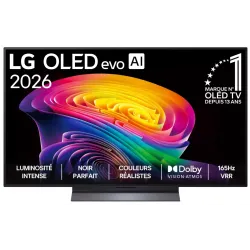 OLED TV LG OLED55C64LA€1,438.00
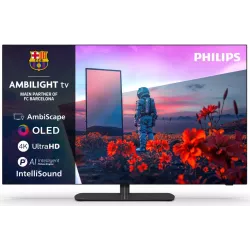 OLED TV PHILIPS 42OLED811/12€1,262.00
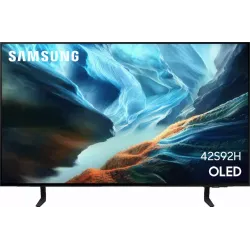 OLED TV SAMSUNG TQ42S92H€1,048.00
 QLED TV TCL 65C89L€1,799.00
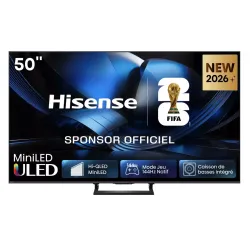 Mini LED TV HISENSE 50U7SE€595.00
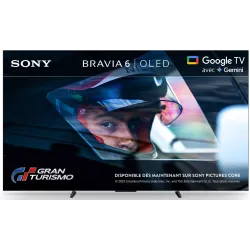 OLED TV SONY K55A65PB€1,193.00
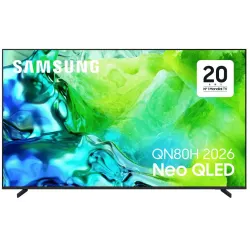 TV QLED SAMSUNG TQ65QN80H€961.00
Frequently asked questions
Why doesn't my PS5 display 120 Hz?
Three possible causes: the TV is a 60 Hz model, the console isn't connected to an HDMI 2.1 port, or the port hasn't been switched to enhanced mode in the TV settings. Also check that the game offers a performance mode.
Do I need to recalibrate HDR when changing TV?
Yes. Calibration depends on the TV's brightness: redo it with every new TV, or after changing picture mode.
Does the HDMI cable make a difference?
Yes, for 4K at 120 Hz. The cable supplied with the PS5 is an Ultra High Speed model and is suitable. An old cable may limit the picture to 60 Hz.
Come and compare the screens in person
At our Temploux shop, we switch on TVs side by side with your content. Or ask our expert salesperson online, right now.
Read next
 Buying guideWhich TV for gaming on PS5, Xbox or PC?A next-gen console deserves a TV to match. Good news: in 2026 you no longer need to go high-end to game in 4K 120 Hz. Here's what really matters, and what's just marketing.3 min read
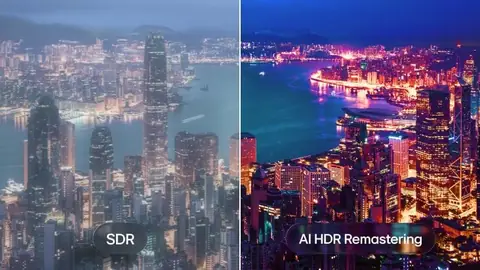 TechnologyHDR, Dolby Vision, HDR10+: what really changesHDR is what makes the difference between a 'clean' picture and one that really dazzles. But with all the logos, it's easy to get lost. We sort it out for you.3 min read
 PracticalHDMI, eARC and TV connections: the guide to plugging everything in correctlyA console that won't output 120 Hz, a soundbar that won't play Dolby Atmos, a picture that cuts out: nine times out of ten, it's a matter of port or cable. Here's how to read the connections on a 2026 TV and plug everything in correctly.7 min read