
Setting up your TV for gaming: Game mode, VRR, 120 Hz, HDR and cables
A gaming TV set up badly plays worse than an average TV set up well. Here, in plain language, are the settings that really matter on the TV, the right cable, then the steps to follow on PS5, Xbox Series and Switch 2.
- Connect the console to a port HDMI 2.1 and turn on the Enhanced HDMI format
- ALLM and VRR enabled on both ends
- For HDR: HGIG on the TV, then calibrate the console
- A cable Ultra High Speed certified, not an old cable
This feature complements our buying guide which TV to choose for gaming on PS5, Xbox or PC : here, we assume you already have the TV and the console, and we get them working well together.
The seven settings that matter, in plain English
| Setting | What it is | To do |
|---|---|---|
| Game Mode | A picture mode that switches off slow processing to reduce the delay between the controller and the screen (latency, or “input lag”). | Always on when gaming |
| ALLM | Auto Low Latency Mode: the console asks the TV to switch to Game mode on its own, then back to Movie mode when you launch Netflix. | On, on both the TV and the console |
| VRR | Variable Refresh Rate: the TV tracks the console's frame rate in real time. No more screen tearing or stutter when the game slows down. | On, especially on PS5 and Xbox |
| 120 Hz | The TV displays up to 120 frames per second. Useful in games' “performance” modes. | On in the console if the TV is native 120 Hz |
| HDR and HGIG | HDR delivers more light and colour. HGIG lets the console handle brightness, based on a calibration. | HGIG on the TV, then console calibration |
| Enhanced HDMI format | The full-bandwidth mode of the HDMI port. Its name varies by brand (Input Signal Plus, HDMI UHD Color, Enhanced Signal Format). | On for the console's port |
| eARC | The port that sends the TV's sound to a soundbar or amplifier, in high quality. | Soundbar on the eARC port |
Latency: what you actually feel
Latency is the time between pressing a button and the action on screen. In Game mode, mid-range and high-end 2026 TVs drop below 10 milliseconds: excellent. Between 10 and 20 ms, it's very good. Above 40 ms, an attentive player will feel it in a shooter or fighting game. Without Game mode, some TVs exceed 100 ms: that's the first thing to fix.
The processing that adds the most delay is the motion smoothing (TruMotion, Auto Motion Plus, Motion Flow...), the noise reduction and certain “vivid” picture modes. Game mode switches them off for you, but check them if the picture seems slow.
HDMI cables: a real issue
For 4K at 120 Hz, you need an HDMI Ultra High Speed (48 Gbit/s), with the certification label on the packaging. The cable supplied with the PS5 and Xbox Series X is fine. Old “High Speed” cables cause black screens, dropouts or a forced fallback to 60 Hz.
- Stay under 3 metres with a passive cable. Beyond that, choose a certified active or optical cable.
- Avoid cheap adapters and HDMI switches between the console and the TV.
- The HDMI 2.2 has been published, but no TV or console uses it in 2026. No need to wait.
To learn everything about ports, read our page HDMI and connections.
HDR in games: HGIG explained
At first, a TV and a console don't know how bright the other can go. The result: blown-out skies or dull scenes. The option HGIG (for HDR Gaming Interest Group) solves the problem: the TV stops “guessing” and applies what the console sends it. You then run the console's HDR calibration, which measures the real limits of your screen.
- On the TV, in Game mode, choose HGIG in the tone mapping setting (or “Dynamic tone mapping: HGIG” depending on the brand).
- Run the console's HDR calibration (PS5: “Adjust HDR”; Xbox: “HDR Calibration for Games” app).
- Follow the three screens: the symbol should only just disappear.
Exact menu names vary by brand and TV year. On Sony, some models also offer an automatic HDR setting with the PS5. To understand the formats, see our page HDR, Dolby Vision and HDR10.
Settings console by console
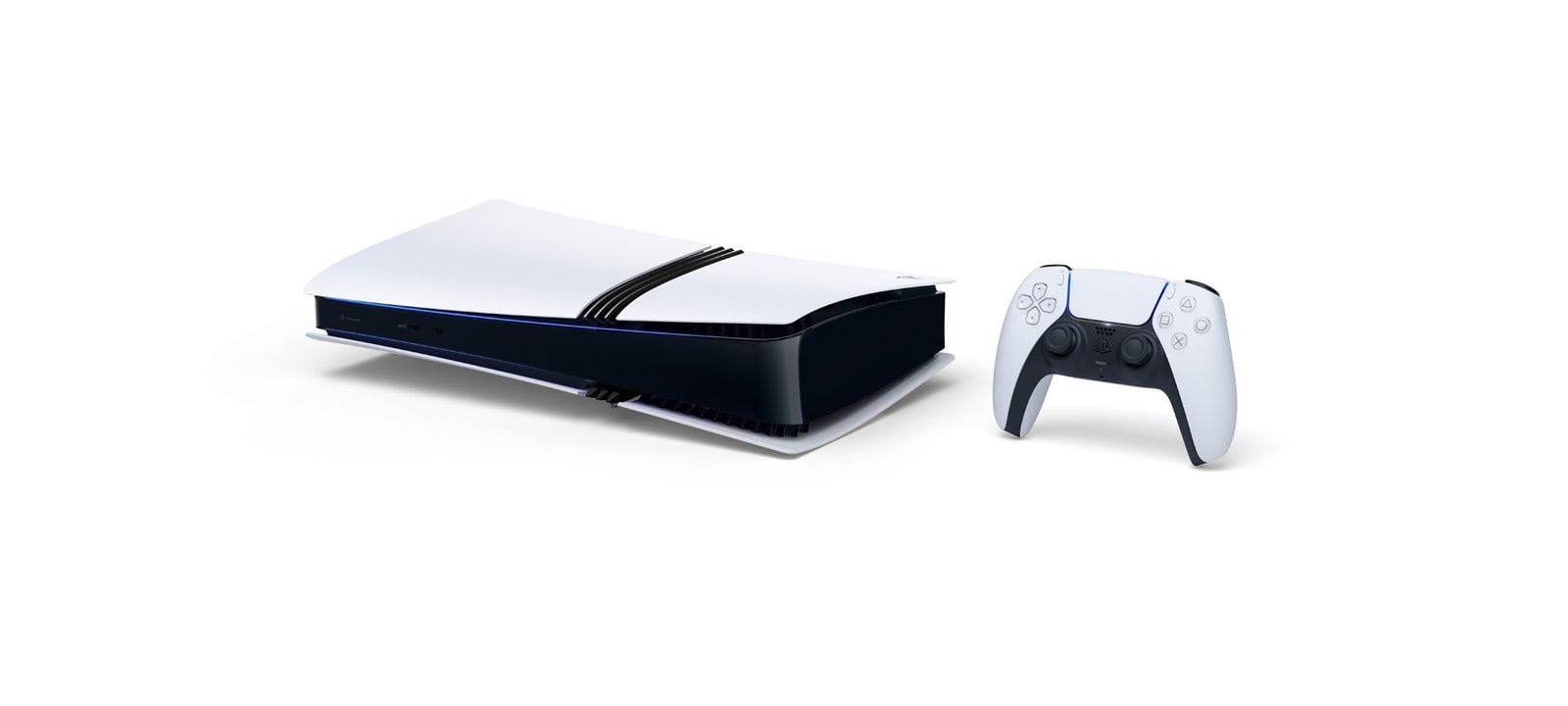
PS5 and PS5 Pro
In Settings > Screen and Video > Video Output :
- Resolution Enable 120 Hz output
- : Automatic (the console chooses 4K if the TV supports it). : Automatic.
- VRR : Automatic. You can also apply it to games that aren't compatible, to be tested game by game.
- HDR : Automatic, then Adjust HDR with the TV already set to HGIG.
- 4K transfer rate : Automatic; switch to “-1” only if you get a black screen.
- HDMI : turn on “Enable HDMI Device Link” so the TV switches on with the console.
The PS5 doesn't support Dolby Vision in games: it plays in HDR10. On the PS5 Pro, also check the graphics modes offered in each game (quality, performance or balanced).
Xbox Series X and S
In Settings > General > TV & display options :
- Resolution : 4K UHD (or 1440p for some TVs with the Series S).
- Refresh rate : 120 Hz.
- Video modes : tick Allow 4K, Allow HDR10, Auto HDR, Allow variable refresh rate and Allow auto low latency mode. With a compatible TV, also tick Dolby Vision for gaming.
- Calibrate HDR for games : run the calibration app, with the TV set to HGIG.
Dolby Vision in games looks superb on LG OLEDs. Samsung TVs don't support Dolby Vision: stick with HDR10 on those.
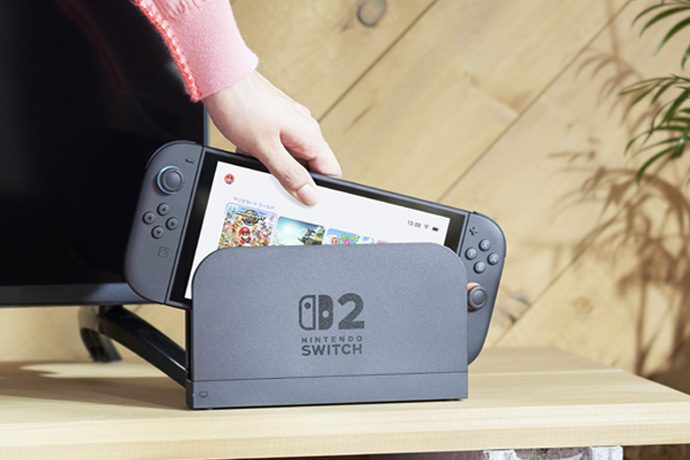
Nintendo Switch 2
In System Settings > Display / TV :
- TV resolution : Automatic. The dock outputs up to 4K at 60 frames per second in compatible games.
- HDR : turn it on if your TV is HDR, then adjust brightness with the console's calibration tool.
- 120 Hz : some games go up to 120 frames per second at a lower resolution; let the console decide.
- VRR : so far, Nintendo only announces it for the console's screen in handheld mode. On the TV, Game mode makes the difference.
TV menus, brand by brand
| Brand | Game mode and settings | Enhanced HDMI format |
|---|---|---|
| LG (webOS) | Game Optimizer: VRR, G-Sync, ALLM, HGIG | HDMI Deep Colour: 4K |
| Samsung (Tizen) | Game Bar and Game Mode: VRR, HGiG, Auto Game Mode | Input Signal Plus |
| Sony (Google TV) | Game Mode, VRR, Auto HDR Tone Mapping with PS5 on some models | HDMI signal format: Enhanced format (VRR) |
| Philips (Titan OS) | Game Mode, HGIG, VRR, Game Bar | HDMI Ultra HD: Optimal (Auto Game) |
| TCL and Hisense | Game Mode or Game Master, VRR, ALLM | HDMI 2.1 or Enhanced HDMI format |
Exact menu names depend on the model and software update. Detailed setup pages for each brand are in our TV section, for example setting up an LG TV or setting up a Samsung TV.
After every major update to your TV or console, redo the HDR calibration: an update can sometimes reset settings to their defaults. And if a game looks too dark or washed out, try HGIG first before touching the brightness. Nine times out of ten, that's where the problem lies.
Our gaming TVs in store
All these TVs have HDMI 2.1 ports, VRR and ALLM. Public prices; the product page is the reference, and Nimesclub members often get a reduced price.
| Model | Why they're good for gaming | Public price |
|---|---|---|
| LG OLED42C64LA (42") | Compact OLED, four HDMI 2.1 ports, ideal for a desk or bedroom | 1 399,99 € |
| LG OLED55C64LA (55") | The gamers' benchmark, Dolby Vision in games | 1 999,99 € |
| Philips 42OLED811 (42") | OLED with Ambilight, very immersive | 1 399,99 € |
| Samsung TQ42S92H (42") | OLED 165 Hz, Gaming Hub for cloud gaming | 1 299,99 € |
| Sony Bravia 6 K55A65PB (55") | OLED with four HDMI 2.1 ports | 1 299,99 € |
| TCL 65C89L (65") | Mini LED 144 Hz, very bright | 1 799,99 € |
| Samsung TQ65QN80H (65") | Neo QLED 144 Hz for bright living rooms | 1 499,99 € |
| Hisense 65UR8S (65") | Mini LED announced up to 180 Hz | 1 799,99 € |
Our gaming TVs in store
 TV OLED LG OLED42C64LA€1,120.00
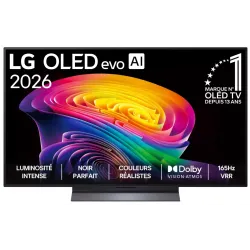 OLED TV LG OLED55C64LA€1,438.00
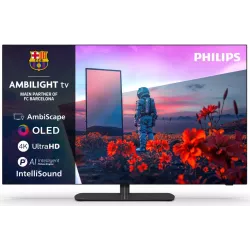 OLED TV PHILIPS 42OLED811/12€1,262.00
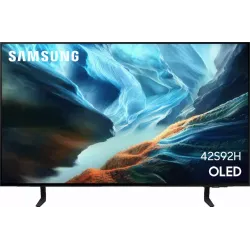 OLED TV SAMSUNG TQ42S92H€1,048.00
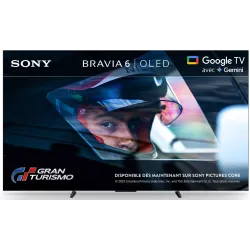 OLED TV SONY K55A65PB€1,193.00
 QLED TV TCL 65C89L€1,799.00
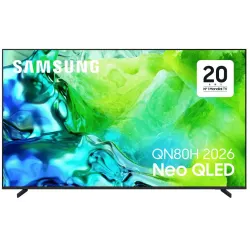 TV QLED SAMSUNG TQ65QN80H€961.00
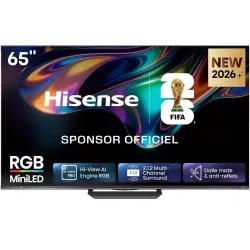 MINILED TV HISENSE 65UR8S€1,481.00
Still undecided on a console? Read our guide which console to buy in late 2026.
Frequently asked questions
Why does my picture go black when I turn on 120 Hz?
In most cases, it's the cable or the port: use the cable supplied with the console or a certified Ultra High Speed cable, and plug it into an HDMI 2.1 port on the TV with Enhanced HDMI format enabled.
Does Game Mode make the picture look worse?
It switches off some processing that adds lag, such as motion smoothing. On a recent TV the difference in picture quality is small, while the gain in responsiveness is noticeable straight away in fast-paced games.
HGIG or dynamic tone mapping, which to choose?
If your console offers an HDR calibration (PS5, Xbox), choose HGIG and run that calibration: it gives the most accurate result. The TV's dynamic tone mapping sometimes gives a brighter picture but a less accurate one.
Should I turn on VRR with the Switch 2?
According to Nintendo's information to date, VRR has no effect in TV mode. Simply turn on your TV's Game Mode (or ALLM), which is what matters most for the Switch 2.
Does my soundbar add lag?
The soundbar doesn't slow down the picture. The sound can sometimes arrive slightly late: connect the soundbar via eARC and use the audio sync setting on the TV or soundbar if needed.
Play on a screen worthy of the game
120 Hz, VRR, low latency: come and try our gaming TVs at our Temploux store, or ask our expert salesperson for advice.
Read next
 Buying guideWhich TV for gaming on PS5, Xbox or PC?A next-gen console deserves a TV to match. Good news: in 2026 you no longer need to go high-end to game in 4K 120 Hz. Here's what really matters, and what's just marketing.3 min read
 PracticalHDMI, eARC and TV connections: the guide to plugging everything in correctlyA console that won't output 120 Hz, a soundbar that won't play Dolby Atmos, a picture that cuts out: nine times out of ten, it's a matter of port or cable. Here's how to read the connections on a 2026 TV and plug everything in correctly.7 min read
 Buying guidePS5, Xbox, Switch 2 or laptop PC: which console to choose at the end of 2026?Console prices have shifted a lot in 2026, and GTA VI arrives on 19 November: now is the time to take stock. Here is each machine with its official price in Belgium, the player it suits and the TV to pair it with.7 min read