
Setting up and using your LG TV
An LG TV comes out of the box with settings designed to impress in a shop, not necessarily in your living room. In a few minutes you can get a more natural picture, clearer sound and a console running at full speed. Here are our salesperson's settings, menu by menu.
- Films : Filmmaker Mode or Cinema, motion smoothing off
- Gaming : Game Optimiser, VRR and HDMI Deep Colour switched on
- webOS : Auvio, VRT MAX and Play yes; Pickx no
- OLED : don't unplug the TV at night
Before you start: the settings menu
On an LG running webOS 26, press the gear button on the remote to open quick settings, then All settings for the full menu. The names below may vary slightly depending on the model and webOS version. If a menu doesn't appear, it is often greyed out while no content is on screen: start a programme before adjusting.
Tip: picture settings are saved for each input (TV, HDMI 1, HDMI 2...) and for each type of content (SDR, HDR, Dolby Vision). Adjust using a programme of the type you watch most.
The right picture modes
| Fashion | When to use it | Our verdict |
|---|---|---|
| Vivid | In-store | Too blue, too contrasty: avoid at home |
| Standard | Daytime TV, news | A decent compromise, slightly cool |
| AI picture (AI Picture Pro) | If you don't want to adjust anything | The TV adjusts itself to the content; the result is sometimes overly sharpened |
| Cinema | Films and series, lit room | Accurate colours, a little brighter than Filmmaker |
| Filmmaker Mode | Films and series, evenings | The picture the director intended: our pick for cinema |
| Expert (bright room, dark room) | Fine-tuning or calibration | For enthusiasts, an ideal base for a calibrator |
| Sport | Daytime sport | Brighter and smoother, colours slightly pushed |
| Game Optimiser | Console, PC | Minimal lag: essential for gaming |
With content Dolby Vision (Netflix, Disney+), the TV offers dedicated Dolby Vision modes: choose Dolby Vision Cinema (or Cinema Home depending on the version) or Filmmaker Mode. For live TV, Standard or Cinema mode is more than enough.
On recent OLEDs, Filmmaker Mode can take the room's light into account (ambient light compensation). If you find it too dark during the day, switch to Cinema mode rather than turning up the brightness.
Settings to switch off
- TruMotion (motion smoothing) : set to 'Off' for films, otherwise the picture takes on a 'soap opera' look. For sport, a light setting (Smooth or User, at a low level) can help.
- Automatic energy saving and automatic brightness : they darken the picture without warning. Switch them off if the picture looks dull; keep them on if you want to reduce power consumption.
- Noise reduction and MPEG noise reduction : pointless with a good source (Netflix, Blu-ray). Leave them on low for live TV.
- Dynamic contrast and dynamic colour gamut : flattering but not very accurate. Turn them off in Filmmaker Mode.
- Sharpness : too high, it creates artificial edges. Keep it low.
Sound
- AI Sound Pro : it adapts the sound to the programme and widens the soundstage. Pleasant for TV, but sometimes too ‘processed' for music: try Standard mode for comparison.
- Clear Voice : boosts dialogue. Very useful if you often turn the volume up during films.
- Soundbar : plug it into the HDMI eARC TV's socket and turn on HDMI control (SIMPLINK on LG) so you can adjust the volume with the LG remote. With a compatible LG soundbar, turn on WOW Orchestra so that the TV speakers play along with the soundbar.
- Digital audio output : set it to Auto or Passthrough to pass through Dolby Atmos. Reminder: DTS does not pass through LG TVs, so connect a DTS source directly to the amplifier.
- Bluetooth headphones : it connects in the sound settings. Depending on the model, recent LG TVs may keep sound on the speakers and headphones at the same time: check the menu.
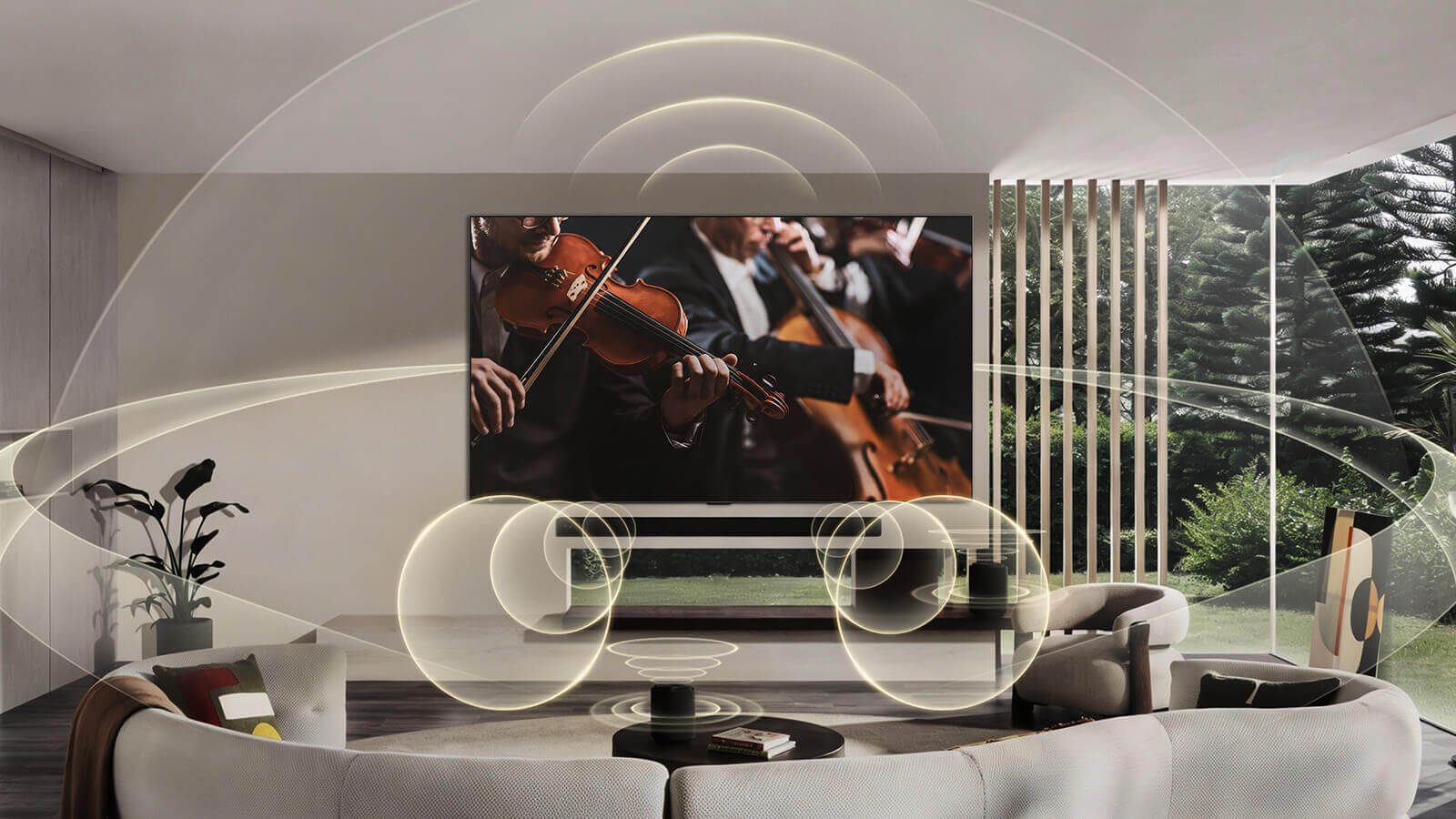
To choose a soundbar wisely, read our TV sound guide.
Gaming: game mode, VRR and ALLM
- The right port : connect the PS5 or Xbox to a 4K 120Hz HDMI input. On the OLEDs and QNED85s, all four are, but one also serves the soundbar (eARC): keep that one for the soundbar.
- HDMI Deep Colour : in Settings, General, Devices, HDMI Settings, set HDMI Deep Colour (Ultra HD Deep Colour depending on version) to 4K for the console's port. Without this, there is no 4K 120Hz or full HDR.
- Optimised for gaming (Game Optimizer) : turn on game mode, then VRR and G-Sync. The ALLM (automatic game mode) switches the TV to game mode as soon as the console starts.
- Console settings : on PS5, turn on 120Hz output and VRR; on Xbox Series X, choose 4K 120Hz, VRR and, if you wish, Dolby Vision for games.
- HGiG : on PS5 and Xbox, choose the HGiG HDR setting in the Game menu, then calibrate HDR on the console. Highlights will be accurate.
- PC : on the C6, G6 and W6, enable 165Hz in the graphics card settings and G-Sync on the NVIDIA side.

webOS day to day: menus and apps
The webOS home screen brings together your apps, HDMI inputs and suggestions. The button Home (the house icon) always brings you back to it. You can move apps by pressing and holding them, and hide some of the suggestions in the home settings.
| App | On LG webOS |
|---|---|
| RTBF Auvio | Yes (webOS 4.5 and later) |
| VRT MAX | Yes |
| Play (formerly GoPlay) | Yes |
| RTL Play, Streamz, VTM GO | Check in the model's LG Content Store |
| Proximus Pickx | No: Proximus box, Apple TV, Chromecast or casting |
| Telenet TV | No: Telenet box, Apple TV, Android TV or AirPlay |
| Orange TV, VOO | No on recent models: box, Apple TV or Android TV |
| Netflix, YouTube, Prime Video, Disney+, Apple TV | Yes |
Google Cast and AirPlay are built in: from Auvio, YouTube or your photos, tap the cast icon on your smartphone and choose the TV. The TV can also be added to Apple's Home app (Apple Home). More details in our installation guide.
Updates
In Settings, General (or Support), About This TV, turn on automatic update. Fixes arrive regularly, and the programme webOS Re:New brings new versions of webOS for five years. A major update may move a few menus: nothing to worry about.
The Magic Remote
- Pointer : give the remote a gentle shake to bring up the cursor, then click with the scroll wheel.
- Scroll wheel : it scrolls through lists and pages.
- Microphone and AI button : hold it down to speak (‘open Auvio', ‘films with Tom Cruise'); webOS 26 can rely on Gemini or Copilot.
- Quick buttons : Netflix, Prime Video or Disney+ depending on the country; a long press on a number can act as a shortcut to an app.
Entry-level models may come with a standard remote without a pointer, depending on the reference. The Magic Remote is also sold separately.
OLED panel care
- Leave the TV plugged in : after switching off, the OLED starts a pixel compensation routine. It lasts a few minutes, sometimes longer after many hours of use. Unplugging the TV every night prevents it.
- The OLED Care menu (OLED Care) groups together pixel shift, logo brightness adjustment and manual pixel cleaning. The latter rarely runs, only if you see image retention that won't go away.
- Vary your content : burn-in comes from static elements displayed for hundreds of hours (news channel logo, game interface, PC taskbar). With varied use, it remains rare.
- PC use : turn on a screensaver and hide the taskbar.
- Cleaning : a dry microfibre cloth, with no product or alcohol. No spray directly on the screen.
A few hidden tips
- Multi View : display two sources side by side (a match and a console, for example) on compatible models.
- Always Ready mode : when the TV is off, it shows a clock, photos or artworks. Handy, but it uses a little power: switch it off if you prefer a black screen.
- Accessibility : subtitles, audio description and interface zoom are in the Accessibility menu, useful for older people.
- Sleep timer : the sleep timer is in the quick settings, ideal for the bedroom.
- Reset : if a problem persists, switch the TV off, unplug it for a minute, then plug it back in. If nothing changes, a factory reset is under General, System.
Try a simple test: watch ten minutes of a film in Filmmaker Mode, then switch back to Vivid. Vivid will suddenly look garish. It's the best proof that factory settings aren't made for your living room. And if you prefer, pop into the shop: we'll show you the menus on a demo model.
The LG models we're talking about here
 OLED TV LG OLED55C64LA€1,438.00
 OLED TV LG OLED65C64LA€1,919.00
 TV OLED LG OLED42C64LA€1,120.00
 OLED TV LG OLED65G64LW€2,614.00
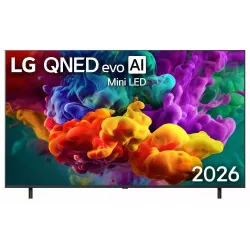 LG 65QNED85B6B QNED TV€843.00
 TV QNED LG 50QNED85B6B€582.00
 TV LED LG 27LB70006LA€174.00
 TV LED LG 32LB650B6LA€205.00
Frequently asked questions
What is the best picture mode on an LG TV?
For films and series, Filmmaker Mode or Cinema mode give the most faithful picture. Vivid mode is made for the shop floor: too blue and too contrasty for the home. Standard mode is a good compromise during the day.
How do I enable 4K 120Hz for the PS5 on an LG?
Connect the console to a 4K 120Hz HDMI port, turn on HDMI Deep Colour (or Ultra HD Deep Colour) in 4K for that port in the device settings, then enable VRR in the Game Optimiser menu. On the PS5, tick the 120Hz output and VRR.
Why does my LG OLED make a noise or show a black screen in standby?
It's often the panel maintenance routine (pixel compensation) running after switch-off. It's normal and useful: leave the TV plugged into the wall so it can complete it.
Can I install Pickx on my LG?
No. Proximus does not offer Pickx on webOS. Use the Proximus box, an Apple TV, a Chromecast or casting from your smartphone.
How do I send a video from an iPhone or Android?
2026 LG TVs include AirPlay (iPhone, iPad, Mac) and Google Cast (Android, Chrome). Tap the cast icon in the app and choose your TV, with both devices on the same Wi-Fi network.
Come and compare the screens in person
At our Temploux shop, we switch on TVs side by side with your content. Or ask our expert salesperson online, right now.
Read next
 PracticalInstalling and setting up your new TV properlyA poorly set-up TV can lose half its quality. Good news: ten minutes is enough to get it right, and we show you exactly what to adjust.3 min read
 Buying guideWhich TV for gaming on PS5, Xbox or PC?A next-gen console deserves a TV to match. Good news: in 2026 you no longer need to go high-end to game in 4K 120 Hz. Here's what really matters, and what's just marketing.3 min read
 Frequently asked questionsLG TVs: our customers' most frequent questionsWarranty, software updates, OLED burn-in, model names that differ between France and Belgium, Belgian apps: these are the questions we get asked every week about LG TVs. Here are our honest, checked answers.6 min read