
Setting up your Samsung TV properly: picture, sound, gaming and apps
A Samsung comes out of the box with a picture that is often too dazzling. In ten minutes, you can make it much more accurate, enjoy 120 Hz with your console and find your apps. Here are our salesperson's settings, step by step.
- For films: picture mode Filmmaker, motion smoothing off
- For gaming: Input signal plus and Game mode
- Auvio, VRT MAX, Play: yes ; Pickx, Telenet: no
- OLED: don't unplug the TV from the socket
Before you start
Samsung's menus are found in Settings (the gear icon), then All settings. Depending on the model and Tizen version, the exact name of an option may vary slightly: if you can't find it, use the settings search or ask the voice assistant. Also remember to connect the TV via Ethernet where possible: 4K streaming and updates are more stable. For installation in general (height, stand, cables), see installing and setting up your TV.
The right picture modes
In Picture, then Picture Mode, Samsung offers several modes. Here's how to use them:
| Fashion | When to use it | Our verdict |
|---|---|---|
| Filmmaker | Films and series, especially in the evening | The most faithful: accurate colours, motion smoothing off. Our default choice |
| Film (or Cinema) | Films, if Filmmaker looks too dark for you | Similar to Filmmaker, a little brighter |
| Standard | Everyday TV, bright room | A good compromise, provided you reduce the automatic effects |
| Dynamic | Shop floor, full sun | Too blue and oversaturated: avoid at home |
| Game Mode | Consoles and PCs | Minimal lag, switches on automatically with ALLM |
| AI Mode | If you don't want to adjust anything | Handy, but it changes the picture constantly |
Samsung doesn't have a “Calibrated” mode like some brands. On compatible models, a feature called smart calibration using a Galaxy smartphone lets you fine-tune the picture; it's not essential. With HDR10+, the setting HDR10+ Adaptive adjusts the picture to the room's light: leave it on if you watch during the day.
Settings to switch off (or turn down)
- Picture Clarity : it's motion smoothing that creates the “soap opera” effect. For films, set it to Off. For sport, a custom setting with moderate blur reduction and little judder reduction is a good compromise.
- Energy saving and brightness optimisation : the TV dims its brightness according to the room. Handy during the day, but the picture sometimes becomes too dark in the evening.
- Contrast enhancer : set to Low or Off for films, so as not to crush detail.
- Sharpness : a low or zero value in 4K. Too much sharpness creates artificial edges.
- Automatic AI effects (Colour Booster, depth enhancer, AI mode): pleasant for daytime TV, switch off for films.
- Colour tone : ‘Warm' gives a more natural picture than ‘Standard' or ‘Cool'. Filmmaker Mode already sets it this way.
Sound
- Sound Mode : Standard for TV, Amplified or Adaptive depending on the model. The option Adaptive Sound adjusts the sound to the room and the programme.
- Dialogue : recent models can boost voices over background noise. Very useful for news and films with muffled dialogue.
- Soundbar : plug it into the HDMI port marked eARC and enable device control (Anynet+, Samsung's name for HDMI-CEC) to control the volume with the TV remote. In the digital audio output settings, choose the automatic mode or ‘Pass-through' to send Dolby Atmos unchanged to the soundbar.
- Q-Symphony : with a compatible Samsung soundbar, choose the ‘Q-Symphony' output: the TV speakers and the soundbar play together.
- Bluetooth headphones : it connects through the list of audio devices. Handy for watching without disturbing anyone.
To choose a soundbar, see our TV sound guide.
Gaming: Game mode, VRR, ALLM and 120 Hz

- Connect the console to a 4K 120 Hz HDMI port or higher (all of them on the OLEDs, Micro RGB and QN80H).
- Turn on ‘Input Signal Plus' on this port (in the external device connection settings). Without it, the TV stays limited and 4K 120 Hz HDR won't pass through.
- Leave Auto Game Mode (ALLM): the TV switches to Game Mode on its own when the console starts.
- Turn on VRR / FreeSync Premium Pro in the Game Mode settings: it eliminates stutter and screen tearing.
- Console settings : on PS5, enable 120 Hz output and VRR in the video settings; on Xbox, choose 4K 120 Hz in the display options.
- HDR in games : turn on HGiG mode when offered, then run the console's HDR calibration.
During a game, the Game Bar (long press on the play button or the dedicated key, depending on the remote) shows the refresh rate, VRR and latency. The M74H and QN70H are 60 Hz panels: they work very well with a console, but without 120 Hz. our gaming TV guide.
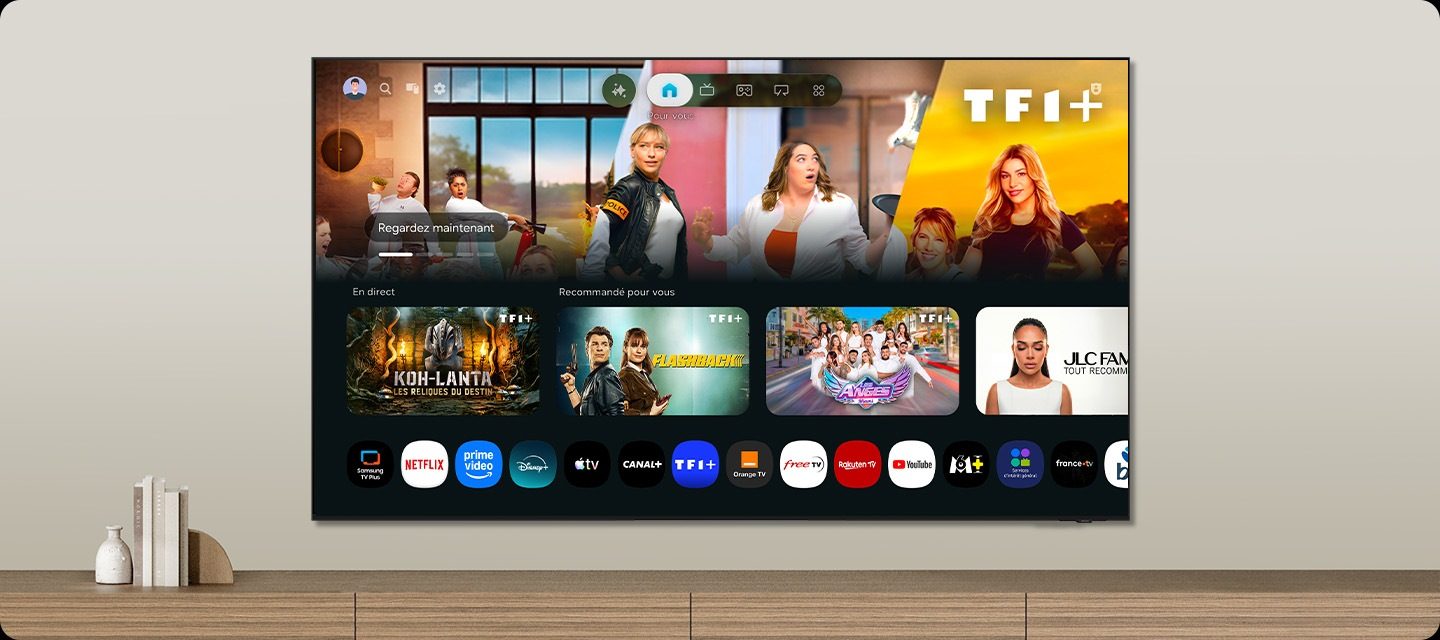
Tizen and Belgian apps
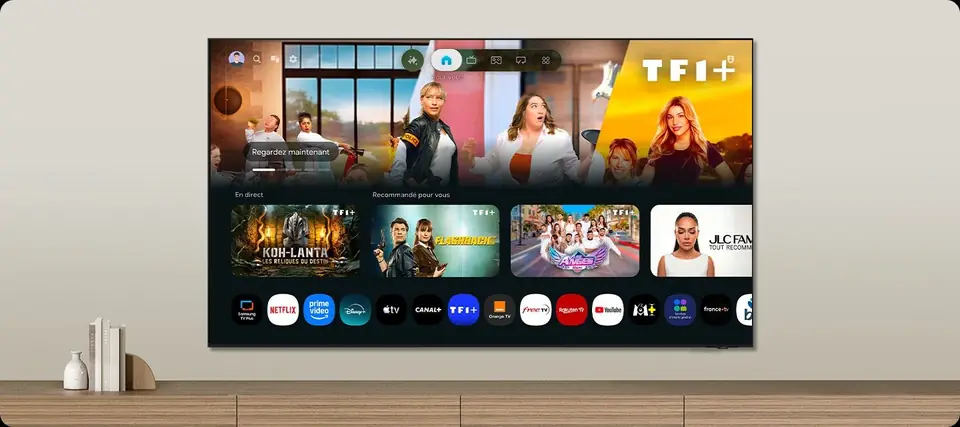
The system Tizen More details in
| App | is organised around a home screen: your apps, TV channels, your HDMI sources and Samsung TV Plus (free channels). Apps are installed from the Samsung app store, using a Samsung account. |
|---|---|
| RTBF Auvio | Yes (2019 models and later) |
| VRT MAX | On a Samsung? |
| Play (formerly GoPlay) | Yes (2019 models and later) |
| Streamz, VTM GO | Yes |
| RTL Play | Yes (2018 models and newer) |
| Netflix, YouTube, Prime Video, Disney+, Apple TV | Yes |
| Proximus Pickx | Likely, to be checked on the model on display |
| Telenet TV | No: set-top box, Apple TV or casting |
| VOO TV+ | Not listed: set-top box, Apple TV or casting |
| Orange TV Go | No: set-top box or compatible device |
Not listed: set-top box or compatible device AirPlay To share your phone's screen: is built in for iPhone, iPad and Mac. From Android, YouTube and Netflix launch on the TV via their cast button, and Galaxy smartphones offer direct sharing (Tap View or Smart View). Samsung TVs don't have full Google Cast like a Google TV: for an app that only works with Chromecast, a Google TV Streamer solves the problem. The details by brand are in.
Updates
Samsung promises 7 years of Tizen system updateslike most Smart TVs, Tizen can analyse what you watch for advertising purposes. You can turn these services off in the privacy settings and the terms and conditions. automatic update . Turn on the in, then Support Software Update
: the TV updates in standby. You can also run a manual search from the same menu, for example if a service stops working.
The remote Most recent Samsungs come with aSolarCell remote SmartThings , which charges from light or via USB-C: no batteries to replace. It has a mic button for the voice assistant and direct buttons for a few streaming services. If it stops responding, recharge it via USB-C, then re-pair it: on most models, just point it at the TV and hold the Back and Play/Pause buttons for a few seconds. The app
on your phone also works as a backup remote.
- Caring for a Samsung OLED Don't unplug the TV from the socket
- : in standby, it runs short compensation cycles that maintain the panel. Leave the protections switched on
- : pixel shifting and dimming of static logos. You won't notice them in everyday use. Vary your content
- PC use : burn-in only occurs with static elements shown for hundreds of hours (rolling news channel, PC interface).
- Cleaning : screensaver active, taskbar hidden.
: screen off, dry microfibre cloth or one very slightly dampened with water. Never glass cleaner or alcohol, especially on a Glare Free screen.
Start with Filmmaker Mode for a week, even if it looks a little ‘yellow' at first. Your eyes adjust quickly, and you won't want to go back. If the picture seems too dark during the day, simply raise the brightness within that same mode.
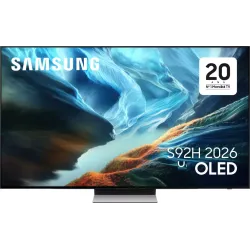 OLED TV SAMSUNG TQ55S92H€1,416.00
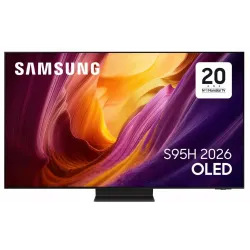 OLED TV SAMSUNG TQ55S95H€1,763.00
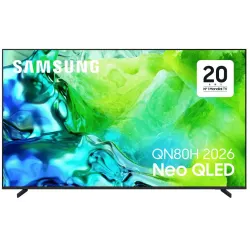 TV QLED SAMSUNG TQ65QN80H€961.00
 TV QLED SAMSUNG TQ65QN70H€875.00
 LED TV SAMSUNG TU55M74H€556.00
 OLED TV SAMSUNG TQ65S92H€1,816.00
A few hidden tips
- The Samsungs we set up most often Search in settings
- : rather than digging through menus, type or say the name of the option. Quick access
- Samsung TV Plus : a long press on certain remote buttons (depending on the model) opens accessibility settings or the Game Bar directly.
- Diagnostics : under Support, Device Care offers a self-diagnosis of picture, sound and network, very handy before calling a service.
- Subtitles and accessibility : subtitles, audio description and sign language zoom are set in the Accessibility menu.
- Turning on from your phone : with SmartThings, the TV can switch on and change source from your smartphone.
More questions? See our Samsung FAQs.
Frequently asked questions
Which picture mode should I choose on a Samsung?
For films and series, Filmmaker Mode: it's the most faithful to the image the director intended. During the day in a bright room, Standard mode with automatic effects reduced is a good compromise. Avoid Vivid mode, which is too blue and oversaturated.
Why won't my PS5 switch to 120 Hz?
Check three things: that the TV is a 120 Hz model (QN80H, R85H, OLED), that Input Signal Plus is turned on for the console's HDMI port, and that you're using the HDMI cable supplied with the PS5. Then enable 120 Hz in the console settings.
How do I turn off the ‘soap opera effect'?
In the expert picture settings, look for the Picture Clarity option and set it to Off or to a custom setting with motion smoothing at its minimum. Filmmaker Mode already switches it off by default.
Can you watch Pickx or Telenet on a Samsung?
Not directly: there is no Pickx or Telenet TV app on Tizen. Use your provider's set-top box, an Apple TV or casting from your smartphone. Auvio, VRT MAX and Play, on the other hand, are available.
Should you switch off a Samsung OLED at the wall?
No. Switch it off with the remote: in standby, the OLED runs small panel-care cycles. Unplugging the TV every night stops them from happening.
How do I update a Samsung TV?
Turn on automatic updates in the Support settings. Samsung promises 7 years of Tizen system updates. You can also start a manual search from the same menu.
Come and compare the screens in person
At our Temploux shop, we switch on TVs side by side with your content. Or ask our expert salesperson online, right now.
Read next
 PracticalInstalling and setting up your new TV properlyA poorly set-up TV can lose half its quality. Good news: ten minutes is enough to get it right, and we show you exactly what to adjust.3 min read
 TechnologySmart TVs and Belgian apps: which system for Auvio, VRT MAX, Play or Pickx?The Smart TV system is your television's brain: menus, apps, updates. In Belgium, it also decides whether you can watch Auvio, VRT MAX or your operator's app without a box. Here's our comparison of the six 2026 systems, with a table of Belgian apps checked against the official help pages.7 min read
 Frequently asked questionsSamsung TVs: frequently asked questions from our customersIn store, the same questions always come up about Samsung TVs: Dolby Vision, the different names in Belgium, apps, warranty. Here are our clear and honest answers, sorted by topic.7 min read