
Setting up your Hisense TV properly: picture, sound, gaming and VIDAA
A Hisense TV often comes out of the box with a picture that is too vivid and too blue. A few minutes of adjustments are enough to really enjoy your screen. Here are our sales-floor settings for picture, sound, gaming and the VIDAA system.
- Films: use Filmmaker or Cinema, reduced smoothing
- Gaming: automatic game mode (ALLM), console on the right HDMI port
- VIDAA AirPlay 2 yes, Belgian apps to check
- Updates: Settings, Support, System update
First things first: three essential habits
- Connect the TV to the internet, preferably via Ethernet cable, and run an update on day one.
- Check that the TV is in "Home" mode and not in shop demo mode: otherwise the picture stays on aggressive showroom settings.
- Change the picture mode : this is the setting that changes the look the most, in ten seconds.
Menu names may vary slightly depending on the VIDAA version and model. If you can't find a setting, ask our expert sales assistant.
The right picture modes
The menu is located under Settings, Picture, Picture mode. The TV remembers a separate setting for SDR (standard TV), HDR10, Dolby Vision and gaming.
| Fashion | When to use it | Our verdict |
|---|---|---|
| Filmmaker | Films and series, evenings | The most faithful to the director's image. Our number 1 choice |
| Cinema (day or night) | Films, depending on room lighting | Very good compromise, a little brighter in the day version |
| Dolby Vision IQ | Dolby Vision content (Netflix, Disney+) | Adapts the picture to room lighting thanks to the sensor |
| IMAX Enhanced | IMAX Enhanced content | Activates with compatible films |
| Sport | Football, F1, tennis | Brighter and smoother, colours slightly pushed |
| Standard | Everyday TV | Correct, but often too blue |
| Dynamic (Vivid) | Shop, room in full sun | To avoid: exaggerated colours and sharpness |
| Gaming | Consoles and PCs | Activates automatically with ALLM, minimal latency |
Settings to turn off or reduce
- Motion smoothing (MEMC, AI Smooth Motion) : turn off or set to minimum for films ("soap opera" effect). Keep it light for sport.
- Noise reduction : unnecessary on Netflix or a Blu-ray, it erases detail. Keep it low for old standard-definition channels.
- Sharpness : often set too high at the factory. Lower it until the edges no longer look "outlined".
- Energy saving : it darkens the picture. Turn it off if the screen looks dull, bearing in mind that power consumption increases.
- Local dimming on Mini LED: leave it on, at a medium or high level. This is what gives the deep blacks.
- Colour temperature : choose "warm" for a more natural, less blue picture.
Sound
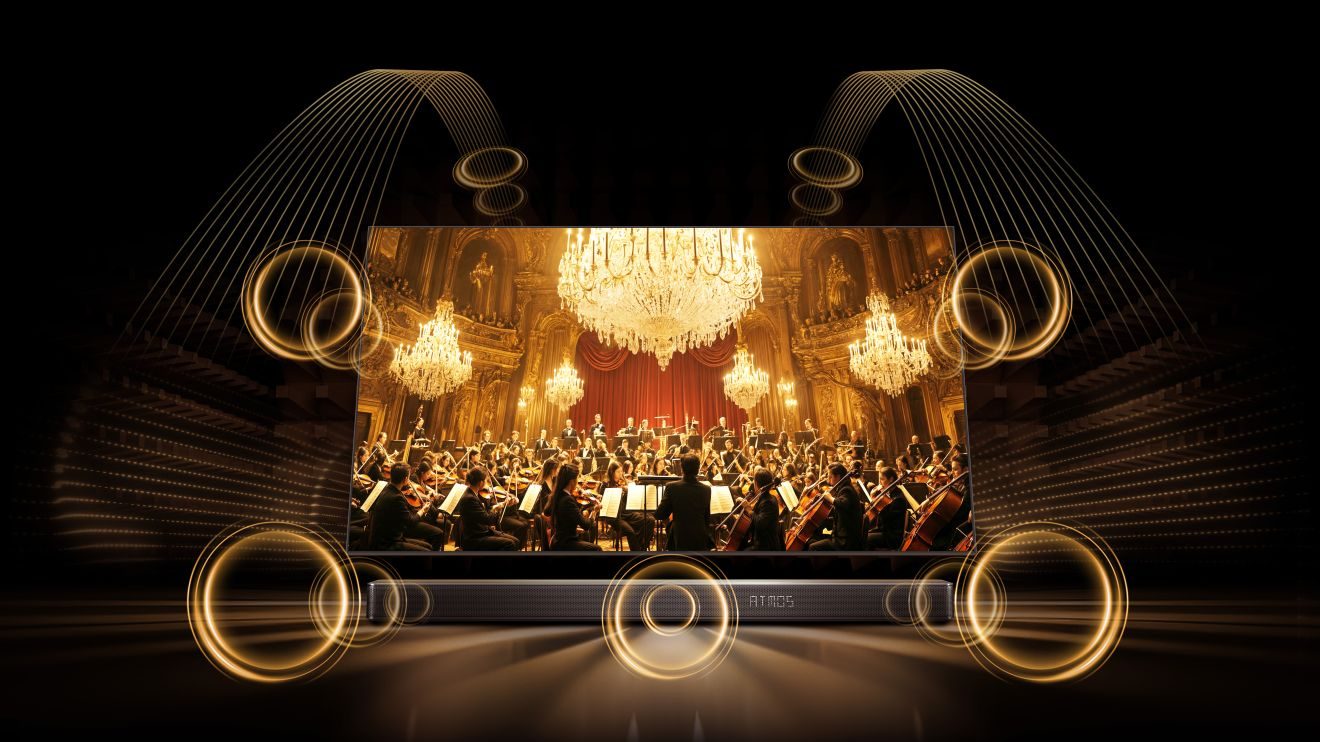
- Sound Mode : try the Cinema, Music or Dialogue modes depending on the programme. Standard mode is a good starting point.
- Soundbar : plug it into the HDMI 3 (eARC), then choose the ARC/eARC audio output in the sound settings. Enable HDMI control (CEC) to control the volume with the TV remote.
- Hisense soundbar : the feature Hi-Concerto makes the TV's speakers and the soundbar play together, on compatible models.
- Dolby Atmos : the format passes via eARC to a compatible soundbar.
To choose a soundbar wisely, read our TV sound guide.
Gaming: game mode, VRR and ALLM
- ALLM : when enabled, it switches the TV to game mode as soon as the console turns on. Check that it is also enabled on the PS5 or Xbox.
- Enhanced HDMI format : for 4K 120 Hz, the port in use must be set to "enhanced" mode (the exact name may vary) in the input settings.
- The right port : on the U7SE, VRR only works on the HDMI 3 and 4. On the U7S Pro and UR8S, all four ports accept VRR. On the A7S, VRR is limited to 60 Hz.
- Game Bar : during a game, it shows the refresh rate and VRR status. Handy for checking that the PS5 is really running at 120 Hz.
- HDR in games : run the HDR setting on the PS5 or Xbox once the TV is in game mode.
VIDAA: the Smart TV system
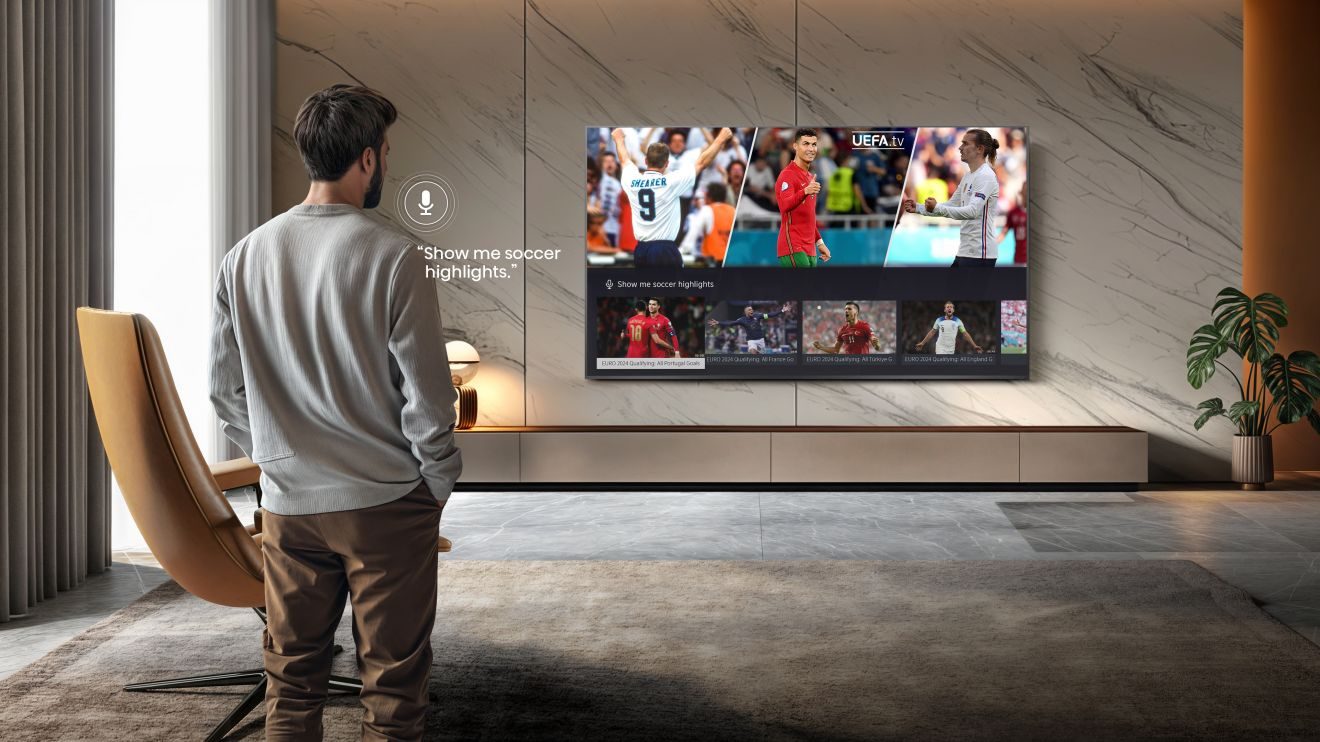
The Home button on the remote opens the VIDAA home screen: your apps, HDMI sources and live TV. You can rearrange apps to put your favourites first. On first start-up, the TV offers to create a VIDAA account; it is used notably for the app store.
Belgian apps on VIDAA
| App | On VIDAA? | Solution if it's missing |
|---|---|---|
| Netflix, Prime Video, Disney+, YouTube, Apple TV | Yes | - |
| RTBF Auvio | Not listed by RTBF | AirPlay from the iPhone, or a Google TV stick |
| VRT MAX | Launch announced by the developer, no date set | To be checked on the display TV |
| Play (formerly GoPlay) | Conflicting information | To be checked on the display TV |
| Streamz, VTM GO, RTL Play | To be confirmed | To be checked on the display TV |
| Proximus Pickx | No | Proximus box, Apple TV or Chromecast |
| Telenet TV, VOO, Orange | No | Operator box, Apple TV or Android TV |
If you watch TV through your operator's box, everything works as normal: the box plugs into HDMI. For everything else, we check with you in the app store of the display TV before you buy. See also is built in for iPhone, iPad and Mac. From Android, YouTube and Netflix launch on the TV via their cast button, and Galaxy smartphones offer direct sharing (Tap View or Smart View). Samsung TVs don't have full Google Cast like a Google TV: for an app that only works with Chromecast, a Google TV Streamer solves the problem. The details by brand are in.
Cast and AirPlay
- AirPlay 2 : available on all the 2026 Hisense TVs we sell. Send photos, videos and screenshots from your iPhone or Mac.
- Android : use the TV's screen sharing. Built-in Chromecast is not confirmed on VIDAA; a Google TV Streamer or Chromecast stick replaces it.
- Smart home : the spec sheets list 'Smart Home ready' compatibility (Google Home, Apple Home and Matter, depending on the sheet).
If a Belgian app is missing on VIDAA, don't panic: an iPhone with AirPlay or a small Google TV stick plugged into HDMI sorts it out in two minutes. But the simplest is to check before you buy: bring us your list of apps and we'll go through it together.
Our Hisense models in store
 Mini LED TV HISENSE 50U7SE€595.00
 Mini LED TV HISENSE 55U7SE€700.00
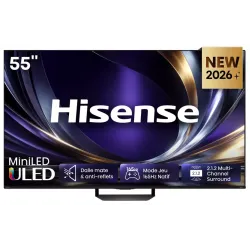 Mini LED TV HISENSE 55U7SPRO€1,299.00
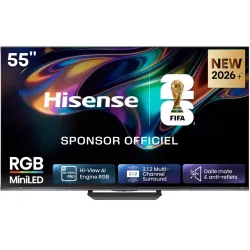 MINILED TV HISENSE 55UR8S€1,296.00
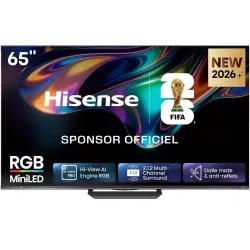 MINILED TV HISENSE 65UR8S€1,481.00
 TV QLED HISENSE 43A7S€398.00
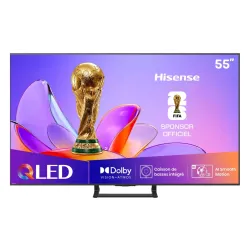 QLED TV HISENSE 55A7S€604.00
Updates
- Hisense announces up to 8 years of VIDAA updates for models from 2025.
- Manual check: Settings, Support, System update. Leave automatic updates switched on.
- On its website, Hisense also offers updates via USB stick : you need your TV's identifier ('extra ID') shown in the menus.
- The Dolby Vision 2 arrives via update on the UR8S, UR9S and U7S Pro: keep the TV updated to benefit.
: the TV updates in standby. You can also run a manual search from the same menu, for example if a service stops working.
The VIDAA remote has direct buttons for the major streaming apps, a microphone button for voice control and the Home button for the home screen. Shortcut buttons vary by model. If voice control doesn't respond, check the remote is paired via Bluetooth (the procedure is in the manual).
Screen care
Hisense doesn't make OLED TVs in 2026: no risk of burn-in, and no pixel refresh cycle to observe. To clean the screen, follow Hisense's advice:
- Switch the TV off, wipe with a microfibre cloth dry, without pressing.
- For a stain, lightly dampen the cloth (never the screen directly), then dry with a second cloth.
- Never use kitchen roll, or products containing ammonia, alcohol (ethanol) or acetone.
A few hidden tips
- Brightness sensor : when on, it adjusts brightness to the room. Switch it off if the picture changes too often in the evening.
- USB hard drive : to play 4K videos, plug it into the USB 3.0 port (fitted on the Mini LED models).
- Privacy : as on all Smart TVs, you can turn off ad tracking of what you watch in the privacy settings.
- Menu display time : adjust it if the menus disappear too quickly.
- Parental controls : lock channels or apps with a PIN.
For installation (height, wall mount, cables), also read installing and setting up your TV.
Frequently asked questions
Which picture mode should you choose on a Hisense TV?
For films and series, Filmmaker or Cinema mode, which are more faithful. For daytime sport, Sport or Standard mode. Avoid Dynamic (or Vivid) mode for everyday viewing: it exaggerates colours and sharpness.
How do I update a Hisense TV?
Keep the TV connected to the internet with automatic updates switched on. To check manually: Settings, Support, System update. Hisense also offers USB stick updates on its website, using your TV's identifier.
Can you cast your phone to a Hisense?
Yes, with an iPhone, thanks to AirPlay 2. With an Android smartphone, the TV offers screen sharing. Built-in Chromecast compatibility isn't confirmed on VIDAA: a Google TV Streamer stick settles the matter if needed.
Why does my Hisense picture look like a soap opera?
It's motion smoothing (MEMC, AI Smooth Motion). Lower it or switch it off in the advanced picture settings for films. Keep it low for sport if you like smooth motion.
Why doesn't my console get VRR on my Hisense U7SE?
On the U7SE, 144 Hz VRR only works on HDMI ports 3 and 4. Plug your PS5 or Xbox into one of them, and turn on Enhanced HDMI mode for that port in the settings.
Come and compare the screens in person
At our Temploux shop, we switch on TVs side by side with your content. Or ask our expert salesperson online, right now.
Read next
 PracticalInstalling and setting up your new TV properlyA poorly set-up TV can lose half its quality. Good news: ten minutes is enough to get it right, and we show you exactly what to adjust.3 min read
 Frequently asked questionsHisense TVs: our customers' frequently asked questionsWarranty, apps, differences between two models, names that change from country to country: these are the questions our customers ask us most often about Hisense TVs. Clear, honest answers, just like in store.6 min read
 Buying guideYour TV's sound: do you need a soundbar?TVs have never been so slim, and that's exactly what hurts the sound. Muffled dialogue, missing bass: don't worry, there's a simple fix, and it doesn't necessarily cost much.2 min read