
Setting up your Philips TV properly: picture, sound, gaming, Ambilight and Titan OS
A properly set up Philips TV gains a lot in natural colour, smoothness and comfort. A few minutes is enough: choose the right picture mode, switch off two or three processing features, turn on game mode and adjust Ambilight. Here is our step-by-step method.
- Films : Filmmaker or Film mode, reduced smoothing
- Gaming : game mode, HDMI in extended format, VRR
- Titan OS : VRT MAX and RTL Play yes, Auvio and Pickx no
- OLED : don't unplug the TV from the wall socket
Menu names may vary slightly depending on the model and Titan OS version. If a setting doesn't appear, look for a similar name in the same menu, or ask our expert salesperson.
The right picture modes
Open the quick menu with the settings button on the remote (the icon with lines and a cog), then the picture style.
| Use | Recommended mode | Why |
|---|---|---|
| Films and series in the evening | Filmmaker (or Film) | Picture faithful to the director's intent, without excessive processing |
| TV during the day | Standard or Natural | Bright and balanced, with the ambient light sensor on |
| Sport | Standard, smoother motion | More fluid motion on the ball and tracking shots |
| Gaming | Gaming | Minimal response time |
| HDR and Dolby Vision content | A dark Dolby Vision or HDR style in the evening, if offered | The TV switches to HDR automatically and offers dedicated styles; the darkest is the most faithful |
| In-store only | Vivid | Too saturated and too blue for home use |
The chosen style applies to the current source (HDMI, apps, TV): set it once for each source.
Settings to turn off or reduce
- Motion smoothing ('motion style'): for films, choose 'Pure Cinema', 'Film' or off. Too high a setting gives the 'soap opera' effect that spoils the cinematic look. For sport, a medium setting works well.
- Noise reduction and MPEG artefact reduction : useful on old SD channels, turn off for 4K and Blu-ray content.
- Dynamic contrast pushed to the maximum: it crushes detail in blacks and whites. Leave it on low or medium.
- Sharpness excessive: it creates white halos around objects. Keep it low.
- Energy saving mode : it often lowers brightness. The ambient light sensor is a better compromise.
Sound
- Choose one sound style suited to: film, music, or a dialogue mode to make voices easier to follow.
- With a sound bar, connect it to the HDMI port marked eARC, turn on HDMI audio output and device control (HDMI CEC): the Philips remote then adjusts the soundbar volume.
- For Dolby Atmos and DTS:X on a compatible soundbar, set the digital audio output to 'passthrough' or automatic.
- On the OLED+911, the Bowers & Wilkins system is often enough on its own: try it before buying a soundbar.
Our guide TV sound and soundbars details the connections.
Gaming: game mode, VRR and ALLM
- HDMI format : in the source settings, switch your console's port to extended format (called 'HDMI Ultra HD' or 'optimal' on Philips). Without this setting, there is no 4K 120 Hz or VRR.
- ALLM : the TV switches to game mode automatically when the PS5 or Xbox turns on. Check that it is enabled.
- VRR (variable refresh rate): turn it on on both the TV and the console. On PC, FreeSync Premium or G-Sync depending on your graphics card (OLED811 and OLED+).
- Console settings : turn on 120 Hz and HDR in the video settings of the PS5 or Xbox.
- Cable : use the HDMI 2.1 cable supplied with the console, or a certified Ultra High Speed cable.
Ambilight set up properly
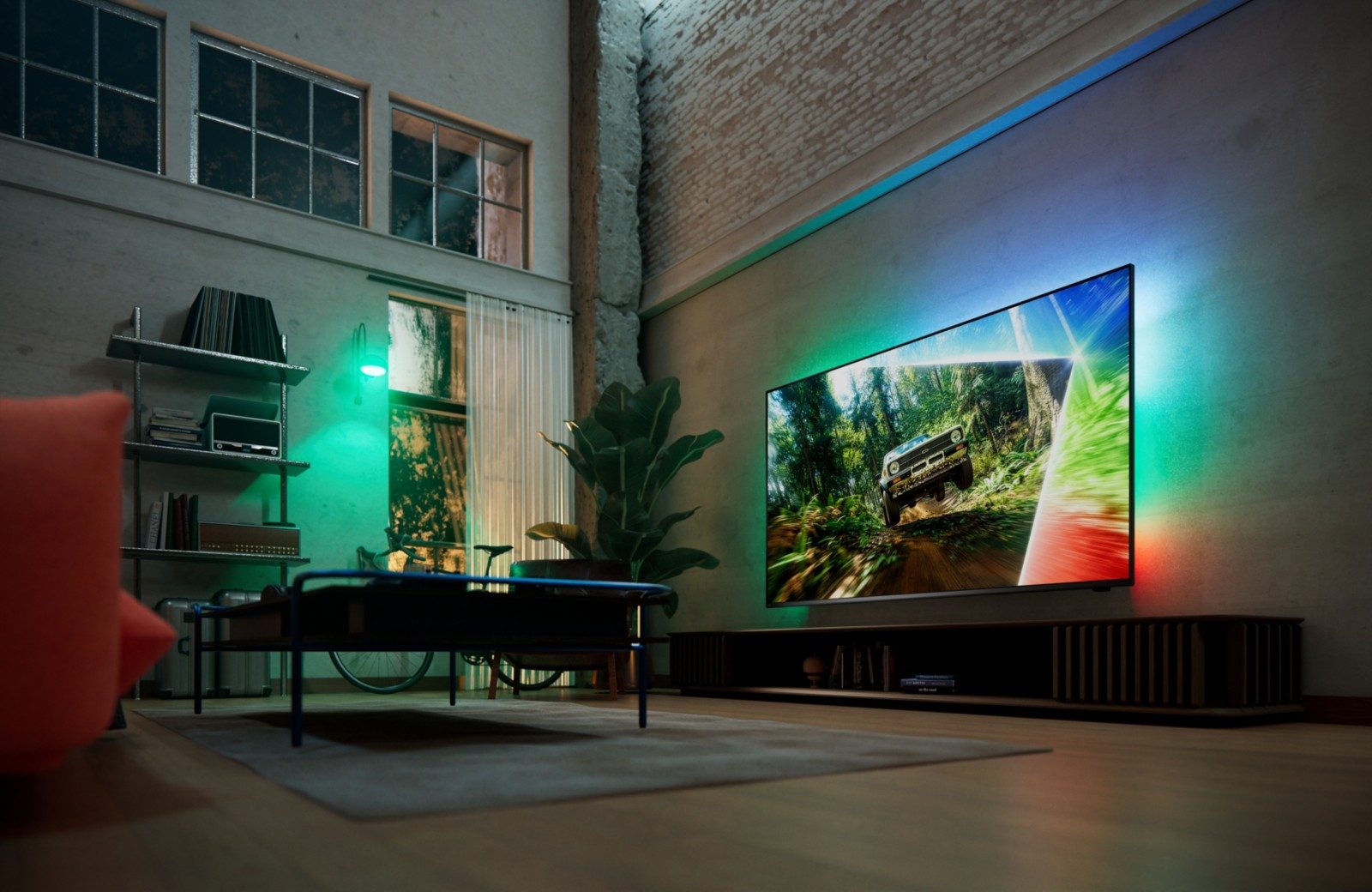
- Video mode for films and sport, audio mode for music, fixed colour or lounge for ambience.
- Intensity : lower in the evening for films, higher for gaming or concerts.
- Wall colour Note: if your wall isn't white, enter its colour in the advanced Ambilight settings to correct the rendering.
- AmbiScape : to pair your Matter bulbs, follow the wizard and scan the QR code shown on screen.
Titan OS: menus and apps
Titan OS is built around a home screen with your apps, recommendations and Titan Channels, free channels accessible from a dedicated button. The Apps button opens the full list of apps.
| App | On Titan OS (Belgium) |
|---|---|
| VRT MAX, Streamz, VTM GO | Yes, in the official list |
| RTL play, Play (formerly GoPlay) | Yes, in the official list |
| Netflix, YouTube, Prime Video, Disney+, Apple TV | Yes |
| HBO Max, DAZN, TF1+ | Yes |
| RTBF Auvio | No |
| Proximus Pickx, Telenet | No (use the set-top box) |
| Spotify | Not listed |
Official Titan OS list consulted on 15 October 2026. It changes over time: check on the TV on display in store.
Cast and AirPlay
Titan OS does not have no Google Cast (Chromecast). AirPlay is listed as compatible with most 2026 models (PQS7801, PQS9001, OLED811/851, OLED+, MLED981), but not on the PQS6901 and PQS8601. For Auvio, Pickx or casting from Android, the simplest solution is a Google TV stick or a Apple TV connected via HDMI: Ambilight keeps working with this source.
Privacy
As with all Smart TVs, a content recognition feature may be used for advertising. You can turn it off in the privacy settings during the first installation or later.
: the TV updates in standby. You can also run a manual search from the same menu, for example if a service stops working.
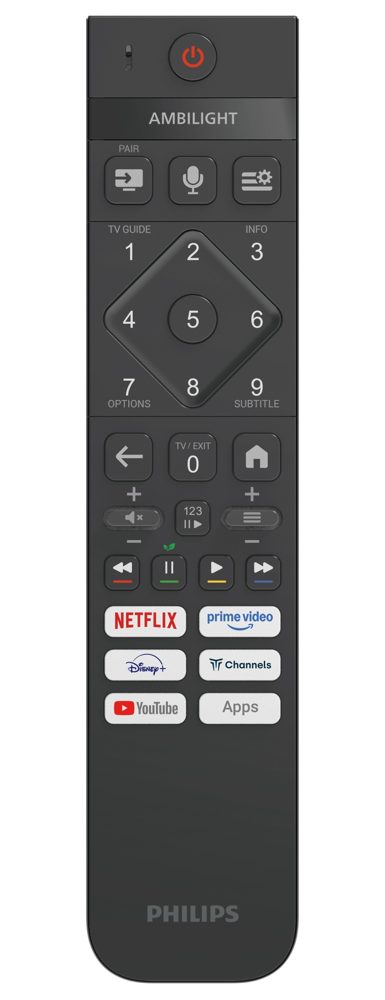
- Ambilight button at the top: one press turns it on or off, successive presses change the mode.
- Microphone button : voice search (Titan OS also works with Google Home and Alexa on most models).
- Settings button (lines and cog): the quick menu for picture, sound and format.
- Shortcuts : Netflix, Prime Video, Disney+, YouTube, Channels and Apps.
- PAIR button : to re-pair the remote if it stops responding.
Updates
Philips announces eight years of updates for Titan OS and the software of 2026 models. Turn on automatic updates and keep the TV connected to the Internet. The announced new features, such as Dolby Vision 2 planned for late 2026, arrive this way.
OLED panel care
- Do not unplug the TV from the socket: in standby, it runs a pixel compensation cycle that protects the panel.
- Keep pixel shift and static logo detection turned on.
- Vary the content: a news channel on for ten hours a day, every day, is the only real risk of burn-in.
- For the screen, use a dry microfibre cloth. Never household products or alcohol.
The two settings that change everything on a Philips: the Filmmaker mode for films, and the extended HDMI format on the console socket. And if you watch Auvio every day, a small Google TV stick plugged into the TV's HDMI port is all you need.
Philips TVs in store
 TV QLED PHILIPS 65PQS9001/12€907.00
 TV QLED PHILIPS 55PQS8601/12€581.00
 OLED TV PHILIPS 42OLED811/12€1,262.00
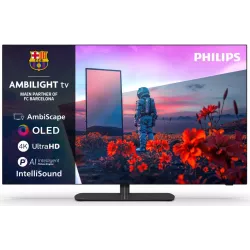 OLED TV PHILIPS 48OLED811/12€1,354.00
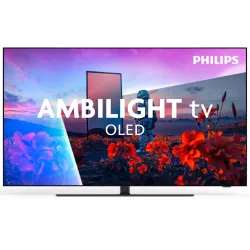 OLED TV PHILIPS 55OLED851/12€1,544.00
 TV OLED PHILIPS 55OLED911/12€1,999.00
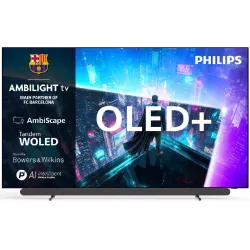 OLED+ TV PHILIPS 65OLED911/12€2,591.00
 OLED TV PHILIPS 77OLED811/12€2,717.00
A few hidden tips
- Ambilight in standby : in lounge mode, Ambilight can light the room like a mood lamp, with the TV off, depending on the model.
- AmbiSleep on the PQS6901: a light that dims gently to help children fall asleep, and a "sunrise" wake-up.
- Numeric shortcut : the 123 button on the remote displays the keypad to type a channel number.
- Live TV : the TV / EXIT button always returns to television, handy for people less comfortable with menus.
- Height : the upper third of the screen should be at eye level. A TV that is too high strains the neck.
For basic installation (aerial, cables, channels), read installing and setting up your TV. Frequently asked questions are in our Philips FAQ.
Frequently asked questions
Which picture mode should I choose on a Philips TV?
For films and series, Filmmaker or Film mode gives the most faithful picture. For daytime TV, Standard or Natural mode with the light sensor. Avoid Vivid mode, which is too oversaturated, except in store.
How do I cast my phone to a Philips Titan OS TV?
There is no Google Cast. With an iPhone, use AirPlay, listed as compatible with most 2026 models (not the PQS6901 and PQS8601). With Android, some apps let you stream to the TV, but this is not guaranteed: a Google TV stick remains the simplest solution.
Why won't my PS5 switch to 120 Hz on my Philips?
Check three things: the model (OLED811, OLED+ or PQS9001 only), the HDMI format setting in extended or optimal mode for the socket used, and a certified HDMI 2.1 cable. Also turn on 120 Hz in the console settings.
Should I turn off Ambilight to save energy?
Ambilight uses little power compared with the screen. You can lower its intensity or turn it off, but it provides visual comfort in the evening. During the day, turning it off makes almost no difference to the picture.
How do I update a Philips TV?
Turn on automatic updates in the settings, with the TV connected to the Internet. Leave it in standby rather than unplugged: it installs new features, such as the Dolby Vision 2 announced for late 2026.
Come and compare the screens in person
At our Temploux shop, we switch on TVs side by side with your content. Or ask our expert salesperson online, right now.
Read next
 PracticalInstalling and setting up your new TV properlyA poorly set-up TV can lose half its quality. Good news: ten minutes is enough to get it right, and we show you exactly what to adjust.3 min read
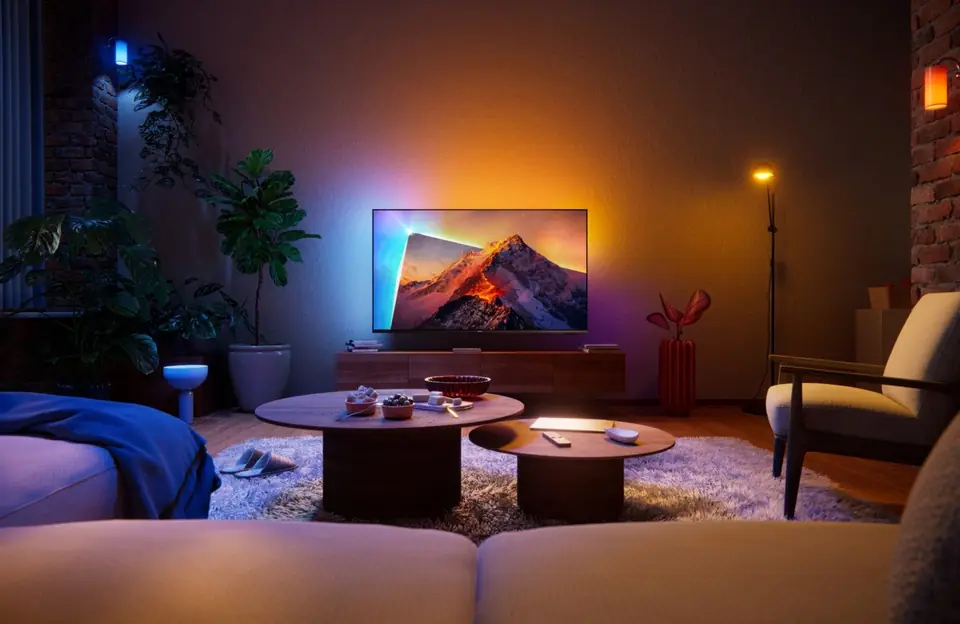 Brand spacePhilips TVs 2026: the full range of the Ambilight brandPhilips is the brand that spills the picture onto the wall thanks to Ambilight. In 2026 the range changes a lot: brighter new OLEDs, QLED TVs renamed PQS and a move to the Titan OS system. Here's everything you need to know before choosing.6 min read
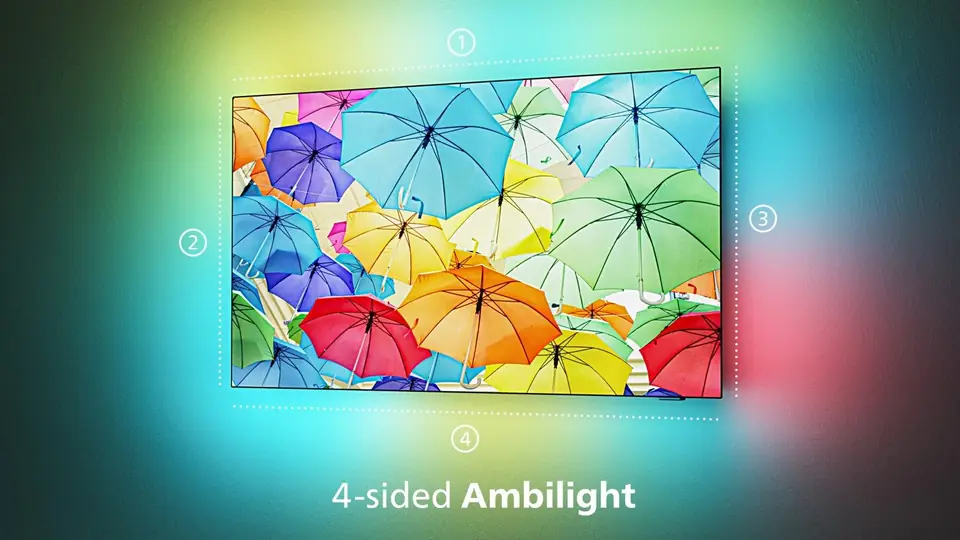 Frequently asked questionsPhilips TV: answers to your frequently asked questionsThese are the questions we get every week in store about Philips TVs. Guarantee, Belgian apps, Ambilight, differences between similar models, minor faults: here are our clear and honest answers.6 min read