
Setting up your Sony Bravia TV properly: picture, sound, gaming and Google TV
A well-adjusted Sony gives a natural picture, faithful to the film, without the 'soap opera effect'. Here are our sales team's settings for picture, sound and gaming, what you need to know about Google TV and Belgian apps, and a few tips few people know.
- Films : Cinema or Studio Calibrated mode, motion smoothing off
- Gaming : Game mode, HDMI set to 'Enhanced format', ports 3 or 4
- Google TV : Auvio, VRT MAX, Play yes; Pickx no
- OLED : don't unplug the TV from the wall socket
The right picture modes
On a Sony, the settings are found in the menu Settings, then Display and sound, then Picture (the exact path may vary slightly depending on the model and software version). The quickest way: the button Quick settings from the remote while you're watching a programme.
| Fashion | When to use it | Our verdict |
|---|---|---|
| Vivid | In-store demonstration | To avoid at home: forced colours, bluish picture |
| Standard | TV during the day, bright room | Fine for everyday use |
| Cinema | Films and series, evenings | Our default choice: natural, accurate picture |
| Netflix, Prime Video or Sony Pictures Core calibrated mode (Studio Calibrated) | In these apps | The best choice: the picture the studio intended, with no adjustment needed |
| Dolby Vision Bright / Dark | Dolby Vision content | Dark in the evening, Bright in a well-lit room |
| IMAX Enhanced | IMAX Enhanced content | On compatible models (Bravia 9 II, 8 II) |
| Gaming | Consoles and PCs | Minimum display lag |
| Custom | Adjust to your taste | For enthusiasts or calibration |
Sony doesn't promote other brands' "Filmmaker Mode": its equivalent is the mode Cinema and the modes Studio Calibrated. These calibrated modes are available on models with an XR processor (Bravia 9 II, 7 II, 8 II, 3 II), but not on the Bravia 6 or Bravia 2 II: on those two models, Cinema mode does the job very well.
Settings to switch off (or tone down)
- Motion smoothing (Motionflow, Smooth Motion option): it creates the "soap opera" effect on films. Set it to minimum or Off for cinema. For sport, a low setting may appeal. If pans judder, the option CineMotion helps keep a natural cinematic look.
- Noise reduction (random and digital): useful on old video, pointless on 4K, where it can smooth away detail. Leave it on Auto or Off.
- The light sensor and energy saving : they reduce brightness. Handy during the day, they can darken the picture in the evening. Test with and without.
- The "vivid" colours (Live Colour): they oversaturate hues. Turn them off for a natural look.
- Sharpness : set too high, it creates artificial edges. Keep the default value for Cinema mode.
Sound
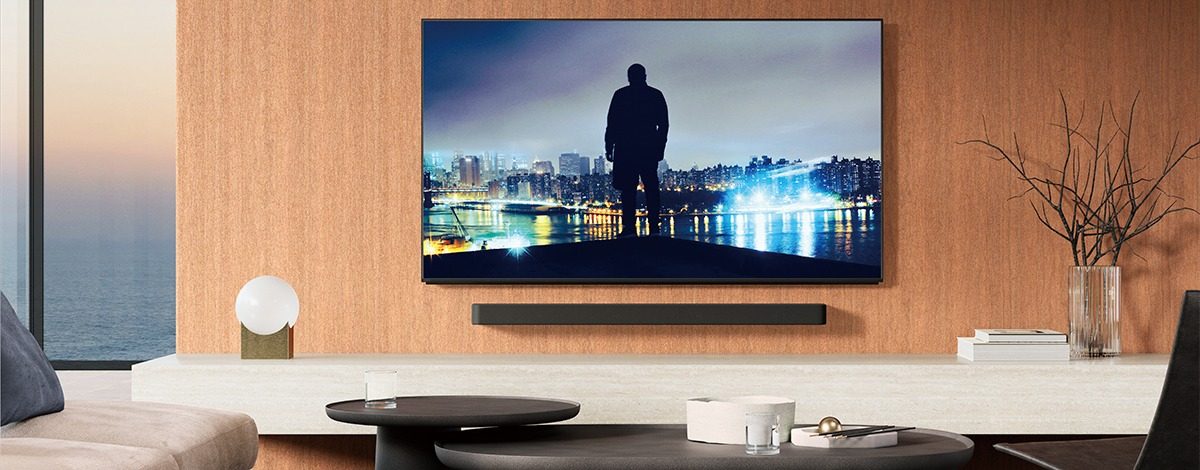
- Sound Mode : Standard for TV, Cinema for films. On XR models, Voice Zoom 3 boosts dialogue: ideal if you turn the volume up to understand the actors.
- Acoustic calibration : on high-end models (the Bravia 9 II, for example), the TV can measure the room's acoustics. Run it once the TV is installed.
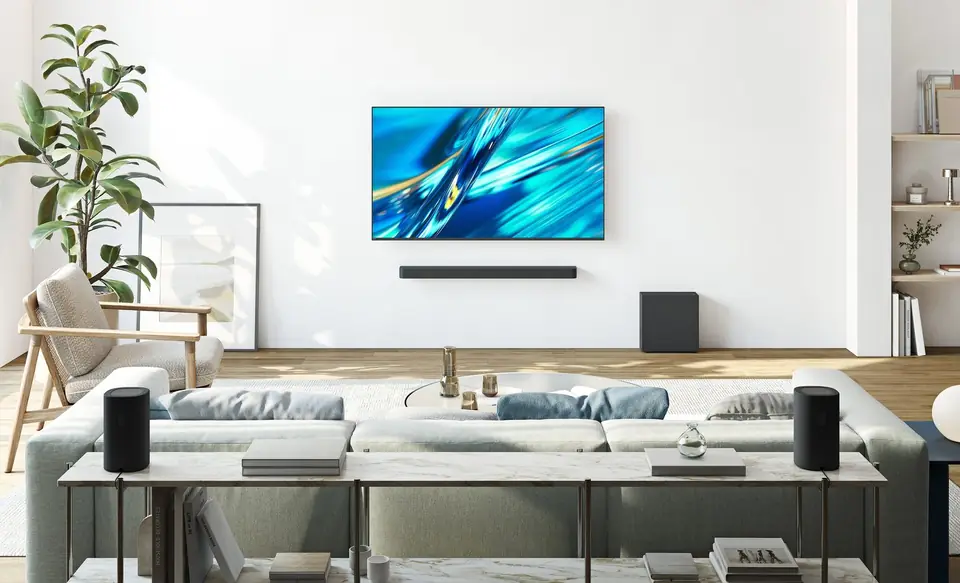
- Soundbar : plug it into the HDMI port marked eARC (HDMI 3 on most models) and set the audio output to the soundbar. With a compatible Sony Bravia Theatre soundbar, turn on Acoustic Center Sync : the TV becomes the centre speaker.
- Bluetooth headphones : Google TV lets you connect wireless headphones or earbuds, handy for watching without disturbing anyone.
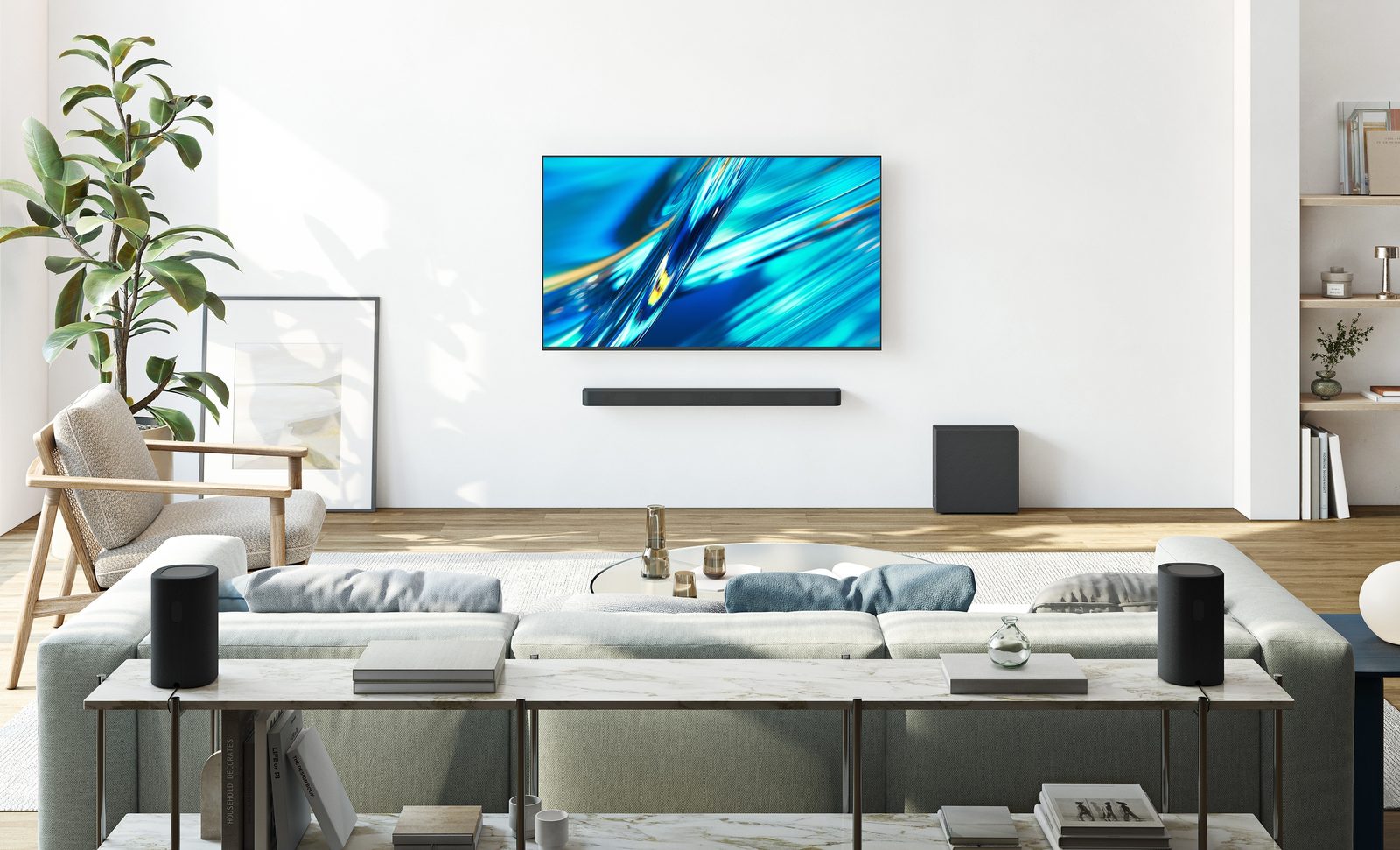
To choose a soundbar, see our TV sound guide.
Gaming: Game mode, VRR and ALLM
- Choose the right port : on the Bravia 9 II, 7 II and 8 II, only the HDMI 3 and 4 support 4K 120 Hz and VRR. HDMI 3 is also used for the soundbar: connect the console to HDMI 4. On the Bravia 3 II and 6, all four ports are suitable.
- Enable enhanced format : in the input settings, set the HDMI signal format of the input you're using to "enhanced format", with the VRR option if offered. Without this, no 4K 120 Hz.
- Let ALLM do its job : the TV switches to Game mode automatically when the console starts.
- With a PS5 (XR models): theAuto HDR Tone Mapping matches the console's HDR to your TV, and theAuto Genre Picture Mode switches between Game and Cinema mode. Check that HDR is set to Automatic in the PS5 settings. These two features don't exist on the Bravia 6.
- Bravia 2 II : 60 Hz and no VRR. Game mode reduces display lag, but there is no 4K 120 Hz.
To find out everything about gaming, read our TV and gaming guide.
Google TV: menus and Belgian apps
All Sony 2026 models run Google TV. The home screen offers recommendations from your services. A Google account is recommended for installing apps; the basic TV mode also lets you use the TV without an account, with channels and HDMI inputs only.
| App | On a Sony Google TV |
|---|---|
| RTBF Auvio | Yes |
| VRT MAX | Yes |
| Play (formerly GoPlay) | Yes |
| VTM GO, Streamz | Yes |
| RTL Play | Yes (2018 models and newer) |
| Telenet TV | Yes (Android TV 10 or later) |
| VOO TV+ | Yes |
| Orange TV Go | Yes |
| Proximus Pickx | No: Proximus box, Apple TV or casting |
| Netflix, YouTube, Prime Video, Disney+, Apple TV | Yes |
It's one of Sony's major strengths in Belgium: the Telenet, VOO and Orange operator apps don't exist on Samsung or LG. Availability can change: if you only watch TV through your operator, ask us to check on the model on display. The brand-by-brand details are in is built in for iPhone, iPad and Mac. From Android, YouTube and Netflix launch on the TV via their cast button, and Galaxy smartphones offer direct sharing (Tap View or Smart View). Samsung TVs don't have full Google Cast like a Google TV: for an app that only works with Chromecast, a Google TV Streamer solves the problem. The details by brand are in.
Cast and AirPlay
- Google Cast (built-in Chromecast) : tap the cast icon in YouTube, Netflix or Auvio on your smartphone, and the video plays on the TV.
- AirPlay : most recent Bravias also accept AirPlay for streaming from an iPhone, iPad or Mac. Check the mention on the model's spec sheet.
Updates
Leave the automatic updates turned on (in System, then About, then System software update). They fix bugs, improve compatibility with consoles and sometimes add features. Sony has not published any fixed duration of updates for its TVs: unlike Samsung (7 years) or LG (5 years), there is no numerical commitment. Preferably connect the TV by cable Ethernet : it's more stable for updates and 4K streaming.
: the TV updates in standby. You can also run a manual search from the same menu, for example if a service stops working.
- The mic (or Google) lets you talk to Gemini : 'play Auvio', 'find a crime film', 'turn the volume down'.
- On most 2026 models, a built-in microphone on the TV lets you talk without the remote. A switch on the TV lets you turn it off.
- Dedicated buttons (Netflix, YouTube, Prime Video, Disney+ depending on the model) open the app with a single press.
- The remote can also be set up to control the volume of a soundbar via the HDMI eARC port (HDMI control function).
Maintenance of the OLED panel (Bravia 8 II and 6)
- Caring for a Samsung OLED : it is in standby that it runs its automatic pixel maintenance (pixel refresh).
- Don't run the manual refresh for no reason: it is done automatically. The menu offers it, but repeated use brings no benefit.
- : pixel shifting and dimming of static logos. You won't notice them in everyday use. : burn-in only happens with static logos displayed for hundreds of hours (rolling news channel, gaming interface). With normal use, the risk stays low.
- Cleaning : a dry, soft microfibre cloth, no product, TV switched off.
The setting that changes everything in thirty seconds: switch to Cinema mode and turn off Motionflow smoothness. Many customers tell me afterwards that their TV is 'finally natural'. If you like, we can also show you the settings in store on the same model.
Sony Bravia TVs in store
 OLED TV SONY K55A65PB€1,193.00
 OLED TV SONY K65A65PB€1,490.00
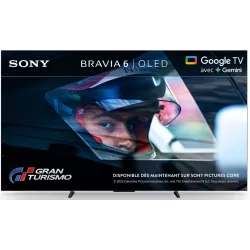 OLED TV SONY K77A65PB€2,177.00
 OLED TV SONY K65XR8M25B€2,421.00
 LED TV SONY K65XR95M2PB€2,633.00
 LED TV SONY K65XR75M2B€1,864.00
 LED TV SONY K65XR35M2PB€1,107.00
 TV LED SONY K55XR35M2PB€822.00
A few hidden tips
- Sony Pictures Core : depending on the model, film credits are included (for example 10 credits over 24 months with the Bravia 9 II, 5 over 12 months with the Bravia 6). Remember to activate them.
- Kids profile : Google TV lets you create a kids profile with selected apps and a time limit.
- Privacy : in the privacy settings, you can opt out of tracking what you watch for advertising purposes.
- Screensaver : on an OLED, leave the screensaver on; it protects the panel when an image stays still.
- Input names : rename the HDMI inputs ('PS5', 'Decoder') so you can find them easily.
- Aerial (DTT) : in Wallonia and Brussels, RTBF broadcasts La Une, Tipik and La Trois for free on DVB-T2. An automatic channel search with an aerial will find them.
For installation (height, wall mounting, cables), see our guide to installing and setting up your TV, and for any other questions, our Sony TV FAQ.
Frequently asked questions
Which picture mode should I choose on a Sony?
For films and series, Cinema mode, or the Netflix or Prime Video calibrated mode when it appears. For daytime TV, Standard. Avoid Vivid mode, which is too oversaturated and too blue.
Why does my Sony's picture look like a soap opera?
It's motion smoothing (Motionflow setting, Smoothness option). Set it to minimum or turn it off for films. Keep it a bit on for sport if you like it.
How do I enable 4K 120Hz for the PS5 on a Sony?
Connect the console to an HDMI 2.1 port (HDMI 3 or 4 on the Bravia 9 II, 7 II and 8 II), then set the HDMI signal format for that input to 'Enhanced format', with the VRR option if it is offered.
Can you watch Pickx on a Sony TV?
There is no Pickx app for retail Google TV sets. You need to use the Proximus box, an Apple TV or casting from a smartphone. The Telenet TV, VOO TV+ and Orange TV Go apps, on the other hand, do exist on Google TV.
Should you unplug a Sony OLED TV at night?
No. Leave it in standby: it is during standby that it runs its automatic pixel maintenance. Unplugging it regularly prevents this cycle.
Come and compare the screens in person
At our Temploux shop, we switch on TVs side by side with your content. Or ask our expert salesperson online, right now.
Read next
 PracticalInstalling and setting up your new TV properlyA poorly set-up TV can lose half its quality. Good news: ten minutes is enough to get it right, and we show you exactly what to adjust.3 min read
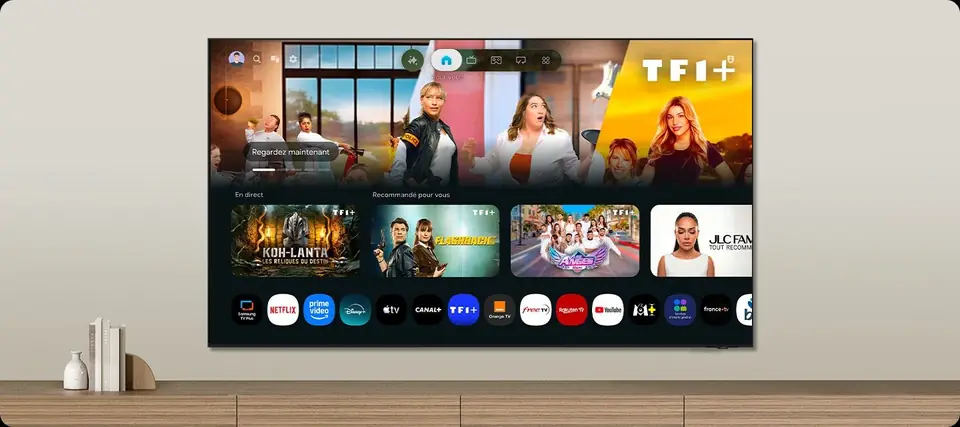 TechnologySmart TVs and Belgian apps: which system for Auvio, VRT MAX, Play or Pickx?The Smart TV system is your television's brain: menus, apps, updates. In Belgium, it also decides whether you can watch Auvio, VRT MAX or your operator's app without a box. Here's our comparison of the six 2026 systems, with a table of Belgian apps checked against the official help pages.7 min read
 Buying guideYour TV's sound: do you need a soundbar?TVs have never been so slim, and that's exactly what hurts the sound. Muffled dialogue, missing bass: don't worry, there's a simple fix, and it doesn't necessarily cost much.2 min read